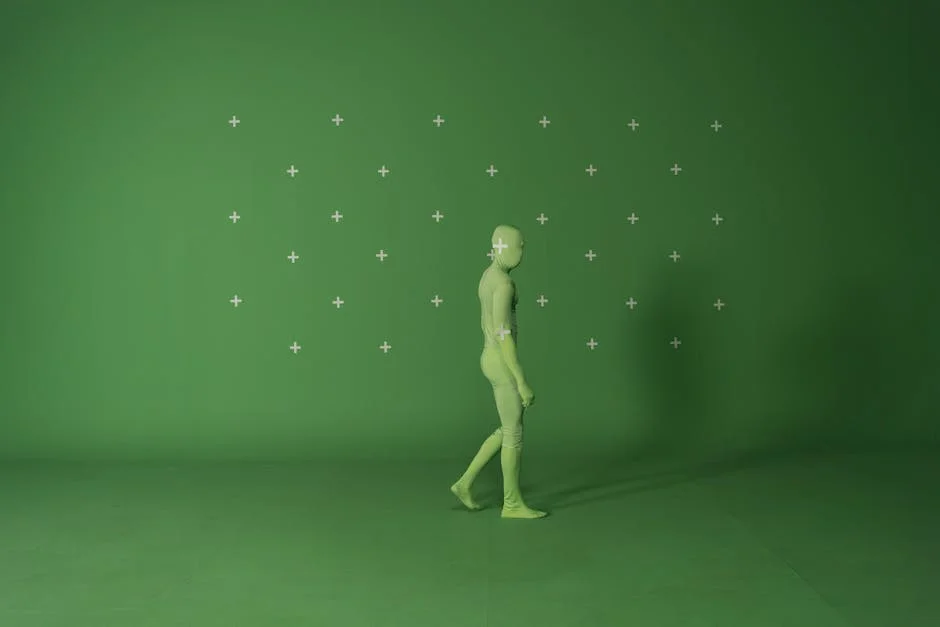
Chroma key software sits at the center of modern compositing, letting creators replace a solid-colored background—most commonly green or blue—with any other image or video layer. The practical appeal is obvious: a small studio, spare room, or classroom can become a newsroom, a product stage, a fantasy world, or a clean branded environment without building sets. When the key is clean, viewers stop noticing the technique and focus on the message, which is why chroma key software is used everywhere from feature film pipelines to livestreaming and corporate training. The concept is simple, but the results depend on many variables: the background color, how evenly it is lit, the color sampling and spill suppression tools in the app, and the way edges are reconstructed around hair, semi-transparent fabric, and motion blur. Strong tools can rescue imperfect footage, but no tool can fully replace good capture practices, so the best outcomes come from a balance between on-set fundamentals and post-production control.
Table of Contents
- My Personal Experience
- Understanding Chroma Key Software and Why It Matters
- How Keying Works: Color Separation, Mattes, and Edge Detail
- Choosing the Right Chroma Key Color: Green Screen vs Blue Screen
- Core Features to Look for in Chroma Key Software
- Workflow Foundations: From Import to Final Composite
- Lighting and Capture Practices That Make Software Keying Easier
- Handling Common Problems: Spill, Shadows, Wrinkles, and Noise
- Advanced Techniques: Multi-Pass Keying, Matte Combining, and Light Wrap
- Expert Insight
- Real-Time vs Post-Production: Different Needs, Different Tools
- Use Cases Across Industries: Content, Education, Marketing, and Film
- Evaluating Software Quality: Testing Footage, Benchmarks, and Practical Criteria
- Best Practices for Natural Composites: Matching Color, Perspective, and Texture
- Maintaining Consistency at Scale: Presets, Templates, and Team Workflows
- Final Thoughts on Getting the Best Results with Chroma Key Software
- Watch the demonstration video
- Frequently Asked Questions
- Trusted External Sources
My Personal Experience
I started using chroma key software when I began recording short tutorial videos in my cramped apartment, and I didn’t have a clean background I liked. I bought a cheap green cloth online, pinned it to the wall, and figured the software would do the rest—but my first attempts were a mess: jagged edges around my hair, weird green spill on my shoulders, and the background flickering whenever I moved. After a lot of trial and error, I learned it was less about the “magic” button and more about lighting and settings: keeping the cloth tight, adding a second lamp to even out shadows, and nudging the tolerance and edge feathering until it looked natural. Now it’s part of my routine—drop in a simple office backdrop or a slide deck behind me—and it still feels a little satisfying every time the key pulls cleanly.
Understanding Chroma Key Software and Why It Matters
Chroma key software sits at the center of modern compositing, letting creators replace a solid-colored background—most commonly green or blue—with any other image or video layer. The practical appeal is obvious: a small studio, spare room, or classroom can become a newsroom, a product stage, a fantasy world, or a clean branded environment without building sets. When the key is clean, viewers stop noticing the technique and focus on the message, which is why chroma key software is used everywhere from feature film pipelines to livestreaming and corporate training. The concept is simple, but the results depend on many variables: the background color, how evenly it is lit, the color sampling and spill suppression tools in the app, and the way edges are reconstructed around hair, semi-transparent fabric, and motion blur. Strong tools can rescue imperfect footage, but no tool can fully replace good capture practices, so the best outcomes come from a balance between on-set fundamentals and post-production control.

Beyond “remove green, add background,” chroma key software is often a full suite of compositing controls. A capable keyer includes adjustable tolerance (or similarity), matte refinement, edge softening, choke/expand, and color correction for the foreground. Many platforms also bundle tracking, masking, garbage mattes, and multi-pass workflows so you can isolate difficult zones such as hair or reflective objects. For creators who publish frequently, speed is as important as quality; GPU acceleration, real-time previews, presets, and batch workflows can determine whether keying is a quick finishing step or a bottleneck. The best approach is to treat keying as a predictable process: start with a solid capture, pull a clean matte, refine edges, correct spill, and then match lighting and grain so the composite feels natural. Once you understand how chroma key software thinks—matte first, color second—you can make informed choices about tools, settings, and shooting practices that consistently produce professional-looking composites.
How Keying Works: Color Separation, Mattes, and Edge Detail
At its core, chroma keying is a classification problem: pixels that match the background color become transparent, and everything else stays opaque. Chroma key software typically operates in a color space that separates chroma from luma, because it’s easier to distinguish “green-ness” or “blue-ness” when brightness is decoupled. Many keyers sample the screen color, then compute a matte: a grayscale image where white represents fully opaque foreground and black represents fully transparent background. The quality of that matte is the entire game. A matte with holes in clothing, gray haze around edges, or chunky stair-stepping will make even a beautiful replacement background look fake. That’s why professional keyers provide multiple controls that shape the matte independently of the color correction stage. You may see parameters like “screen gain,” “screen balance,” “clip black/white,” “despill,” and “edge color correction,” each addressing a different failure mode. Good keyers also let you create garbage mattes to remove stands, floor seams, or light spill outside the subject area, which reduces the burden on the main key.
Edge detail is where chroma key software differentiates itself. Hair, fur, veils, smoke, glass, and fast motion produce semi-transparent pixels that sit between foreground and background. A simplistic keyer will either chew those pixels away (making hair look cut out) or leave a green outline (making the composite glow). More advanced tools support multi-matte strategies: one matte for the core subject (solid edges) and another for the fine edges (wispy detail), then they combine them with a controlled blend. Some keyers also use edge-aware filters, sub-pixel refinement, and temporal smoothing to reduce chatter frame-to-frame in video. If your footage includes motion blur, you want a keyer that can preserve the blur rather than snapping it to a hard edge. When evaluating chroma key software, pay attention to how it handles semi-transparency and whether it offers separate controls for core matte, edge matte, and spill suppression. These features directly translate to fewer artifacts, less manual rotoscoping, and a more believable composite under real-world shooting conditions.
Choosing the Right Chroma Key Color: Green Screen vs Blue Screen
The “best” screen color depends on your subject, wardrobe, camera, and final delivery. Green is common because digital sensors often capture more luminance detail in green, and green screens can appear brighter at the same exposure, which helps reduce noise. Noise is a keying enemy; when the screen is noisy, the matte becomes speckled and the software must be pushed harder, often damaging edges. Blue screens, however, can be better when the subject includes green elements—plants, green clothing, or reflective surfaces that pick up green spill. Blue can also be useful when you want to minimize spill on blonde hair or when working with certain lighting styles. Chroma key software can key either color, but the cleaner the separation between subject and background, the less aggressive the settings need to be. The aim is to pick a background that is absent from the subject and easy for the camera to capture cleanly.
Lighting and wardrobe planning are inseparable from chroma key software performance. If a subject wears a green tie on a green screen, no keyer can reliably keep that tie without manual masking. Similarly, if the screen is wrinkled, unevenly lit, or contaminated with shadows, the keyer must accommodate a wider range of greens, which increases the risk of cutting into the subject. A good practice is to light the screen separately from the subject, keeping the screen evenly exposed while maintaining flattering key/fill on the talent. Many creators aim for a screen exposure slightly below the subject to reduce spill, while still keeping the screen bright enough to avoid noise. Chroma key software can compensate with spill suppression, but heavy despill can desaturate edges and make skin look gray if pushed too far. The best balance is achieved when the screen color is uniform, the subject is separated from the screen by distance, and the keyer is only doing fine refinement rather than major rescue work.
Core Features to Look for in Chroma Key Software
Not all chroma key software is built for the same workflow. Some tools prioritize speed and simplicity for creators who need quick results, while others offer deep control for VFX pipelines. Core features worth prioritizing include high-quality matte generation, robust spill suppression, and edge refinement controls that don’t introduce halos. Look for the ability to sample multiple screen colors or use an eyedropper with adjustable sampling radius, because real screens often have subtle gradients. A keyer that supports garbage mattes and holdout masks will save time by letting you exclude areas that should never be keyed, such as the floor, light stands, or the edge of the backdrop. Another useful capability is separate control over the “core” and “edge” regions, allowing you to keep the subject solid while preserving fine hair detail.
Performance and interoperability matter just as much as key quality. GPU-accelerated previews can make chroma key software feel responsive, especially when working with 4K footage, high frame rates, or multi-layer composites. If your workflow involves multiple apps, consider whether the keyer supports common codecs, color management, and alpha channel handling without surprises. Some programs interpret premultiplied alpha differently, which can create dark fringes unless settings match across tools. Also consider whether the software supports motion tracking, because tracking a background plate or adding subtle camera motion can dramatically improve realism. Finally, pay attention to color correction tools that operate on the foreground after keying; matching contrast, color temperature, and grain to the replacement background is often what separates a “keyed” look from a believable composite. The strongest chroma key software packages integrate these steps so you can iterate quickly and maintain consistent results across many shots.
Workflow Foundations: From Import to Final Composite
A reliable keying workflow starts before you touch any sliders. Once footage is imported into chroma key software, the first step is usually to set up your project correctly: frame rate, resolution, color space, and any needed LUTs or log-to-rec709 conversions. Keying on incorrectly transformed footage can lead to unstable mattes because the background color shifts as you adjust exposure and contrast. After basic setup, most compositors begin with a rough garbage matte to limit the keyer’s attention to the screen area around the subject. This reduces noise and prevents the keyer from trying to interpret unrelated objects. Next comes the primary key: sample the screen color, adjust similarity/tolerance until the background drops out, then refine clip black and clip white to clean the matte without eating into the subject. If the screen is uneven, you may use a screen pre-blur or a dedicated “screen clean” function to smooth the background color before keying.

After the initial matte is usable, refine edges and address spill. Edge refinement typically involves a small amount of soften to remove jaggedness and a careful choke/expand to align the matte to the real subject boundary. Too much soften makes the subject look out of focus; too much choke trims hair and thin objects. Spill suppression should be targeted: remove green contamination from edges while preserving natural color in skin and clothing. Many chroma key software tools offer “despill bias” controls that protect skin tones, which is especially useful for close-ups. Then comes compositing: place the replacement background, match perspective and scale, and adjust the foreground color to sit naturally in the scene. Adding subtle shadowing, contact shadows, or a light wrap effect (where background light softly influences the edge) can help integrate the subject. Finally, add grain and motion blur matching so the foreground and background share the same texture. A repeatable workflow like this turns keying into a controlled process rather than a guessing game.
Lighting and Capture Practices That Make Software Keying Easier
Even the most advanced chroma key software benefits from footage captured with keying in mind. The screen should be evenly lit, ideally within a narrow exposure range across the whole area behind the subject. Uneven lighting forces the keyer to accept more variation in the screen color, which increases the likelihood of holes in the matte or noisy edges. A common approach is to light the screen with broad, soft sources placed to minimize hotspots, while separately lighting the subject for shape and separation. Distance is critical: placing the subject several feet away from the screen reduces green spill and prevents shadows on the backdrop. Hair light or rim light can help separate the subject from the background, but it should be controlled so it doesn’t create bright, semi-transparent edges that are hard to key cleanly.
Camera settings also influence how well chroma key software performs. Higher bit depth and less compression preserve subtle edge detail and reduce banding in the screen, both of which make matte extraction more stable. When possible, record in 10-bit or higher and use intraframe codecs or high-bitrate recording to avoid macroblocking around edges. Avoid excessive sharpening in-camera, because it can create ringing artifacts that look like outlines after keying. Similarly, high ISO introduces noise, which the keyer may interpret as foreground detail, causing crawling edges. Proper white balance helps keep the screen hue consistent; if the color shifts during the shoot, the keyer will need different settings shot-to-shot. Finally, consider shutter speed: very fast shutter reduces motion blur and can make keying easier, but it may look stuttery; very slow shutter creates heavy motion blur that is harder to key. Balancing cinematic motion with key-friendly capture is part of the craft, and good capture decisions reduce the amount of time spent fighting settings in chroma key software later.
Handling Common Problems: Spill, Shadows, Wrinkles, and Noise
Spill is the green or blue cast that reflects from the screen onto the subject, often visible along edges, hair, and reflective surfaces. Chroma key software typically addresses this with despill controls that reduce the offending hue. The trick is to remove spill without making the subject look desaturated or unnatural. Many keyers let you target despill to the edge region only, which is preferable to global color changes. If spill is severe, a secondary color correction pass on the foreground can restore warmth to skin tones. Shadows on the screen create darker areas that may not key out cleanly, resulting in muddy transparency. Some tools include screen equalization or background “clean plate” generation that can normalize the screen before keying. If not, you can sometimes blur the screen layer, apply curves to compress its variation, and then feed it to the keyer as a preprocessed input.
Wrinkles and texture in fabric screens can cause micro-shadows and specular highlights that break the assumption of a uniform color. Chroma key software can compensate up to a point with wider tolerance, but that also risks cutting into the subject. A better approach is to address wrinkles on set with proper tensioning, steam, or a rigid backdrop. Noise, especially in low light, makes the matte dance from frame to frame. Some keyers offer temporal smoothing to stabilize the matte, while others rely on denoising filters before keying. If you denoise, do it carefully: over-denoising can smear fine hair detail that the keyer needs. Another frequent issue is color fringing caused by lens chromatic aberration, which can leave colored outlines at high-contrast edges. Correcting aberration before keying often improves edge cleanliness. When you combine smart capture practices with targeted fixes—garbage mattes, pre-blur, denoise, and controlled despill—chroma key software becomes a finishing tool rather than a rescue tool.
Advanced Techniques: Multi-Pass Keying, Matte Combining, and Light Wrap
Complex shots often require more than a single key. Multi-pass keying is a common technique where you pull separate keys for different regions or characteristics of the subject. For example, one key might be optimized for the torso and clothing (solid edges), while another is tuned for hair and semi-transparent details (fine edges). Chroma key software that supports layering mattes or combining them with “max” or “add” operations makes this approach straightforward. You can also use holdout masks to protect areas that the keyer tends to damage, such as a dark jacket that accidentally matches the screen in shadows. Another advanced method is using a clean plate: a shot of the green screen without the subject. With a clean plate, some compositors subtract the background variation or use difference keying approaches for improved separation in difficult lighting conditions.
| Software | Best for | Keying quality & tools | Platforms | Pricing |
|---|---|---|---|---|
| Adobe Premiere Pro | Editors who need chroma key inside a full NLE workflow | Ultra Key effect, spill suppression, matte cleanup, mask/garbage matte support | Windows, macOS | Subscription |
| DaVinci Resolve | Creators who want strong keying plus color grading (and optional VFX) | 3D/Delta Keyer (Fusion), clean plate options, matte finesse, advanced spill control | Windows, macOS, Linux | Free tier + one-time Studio license |
| Final Cut Pro | Mac users seeking fast turnaround and simple keying | Built-in Keyer, edge/strength controls, spill suppression, shape masks | macOS | One-time purchase |
Expert Insight
Light for separation, not brightness: place your subject at least 6–10 feet from the green/blue screen and add a backlight or hair light to create a clean edge. In your chroma key software, sample multiple points on the screen and use a small tolerance increase rather than one aggressive key—this preserves fine details like hair and fabric texture.
Refine the matte before you color-correct: apply spill suppression and edge softening sparingly, then use a garbage matte to crop out problem areas (stands, wrinkles, shadows) so the keyer works less. After the key is solid, match the background with subtle blur, grain, and color temperature adjustments so the composite looks naturally shot in the same scene. If you’re looking for chroma key software, this is your best choice.
Integration techniques help the composite feel like it was shot in the final environment. Light wrap is a popular finishing step where the background subtly influences the edge of the subject, simulating light scattering and lens behavior. Many chroma key software packages include a light wrap effect, or you can create it by blurring the background, masking it to the edge region, and blending it over the foreground lightly. Shadow creation is another realism booster: if the subject stands in a scene, adding a soft shadow on the ground plane anchors them. Matching depth of field is equally important; if the background is blurred and the subject is sharp, the composite looks pasted on unless that is an intentional stylistic choice. Grain matching is often overlooked; adding a consistent film grain or noise layer across the composite can hide minor matte imperfections and unify elements. Advanced keying is less about extreme slider settings and more about building a layered approach—multiple mattes, thoughtful integration, and subtle finishing—so the audience never notices the chroma key software at work.
Real-Time vs Post-Production: Different Needs, Different Tools
Real-time keying is common in livestreaming, virtual events, and fast-turn content where the composite must be produced instantly. In these contexts, chroma key software emphasizes speed, low latency, and stability over frame-perfect edges. Real-time tools often provide simplified controls: pick the key color, adjust similarity, and apply basic spill suppression. Because you can’t spend time rotoscoping or building multi-pass mattes, capture quality becomes even more important. Even lighting, minimal wrinkles, and adequate subject-to-screen distance are essential. Real-time pipelines also have to handle compression and limited color fidelity, especially when streaming at lower bitrates. A clean key that looks good at 1080p may break down when the stream compresses edges, so conservative settings and slightly softer edges sometimes look better in motion.

Post-production keying, by contrast, is built for maximum quality and control. Here, chroma key software often lives inside a non-linear editor or a dedicated compositing application, and you can afford to do multiple passes, masks, tracking, and shot-specific color correction. Post workflows also benefit from higher-quality source footage, including log profiles, 10-bit color, and less compressed codecs. The keyer can be tuned precisely, and you can fix issues with targeted masks rather than compromising the whole shot. Another difference is color management: post-production often requires consistent handling of color spaces, HDR delivery, and matching plates shot under different conditions. The best choice of chroma key software depends on which world you live in. If you need immediate output, prioritize stability and GPU performance. If you need cinematic realism, prioritize matte tools, edge detail, and integration effects. Many creators use both: a real-time key for previews and a post-production key for the final deliverable.
Use Cases Across Industries: Content, Education, Marketing, and Film
Chroma key software has become a standard tool for creators and organizations that need flexible visuals without large production budgets. Content creators use it to place themselves in game footage, animated environments, or branded overlays, maintaining a consistent look across episodes. Educators use keying to appear alongside slides, diagrams, and interactive elements, which can improve engagement when the presenter is integrated into the visual lesson rather than confined to a small webcam box. In marketing, keying enables rapid production of product explainers, seasonal campaigns, and localized messaging: the same talking-head footage can be repurposed across multiple backgrounds and languages, reducing reshoot costs. Corporate communications teams also rely on it for consistent internal updates, especially when remote presenters need to appear in a standardized studio-like environment.
In professional film and television, chroma key software supports everything from simple set extensions to complex VFX shots where actors perform in front of green screens that later become alien landscapes or futuristic cities. The difference at the high end is the level of planning: camera tracking markers, measured lighting, lens data, and color-managed workflows help ensure the composite holds up on large displays. Even then, keying is rarely a single-click affair; it’s part of a broader compositing pipeline that includes matchmoving, CG integration, and meticulous color grading. The same underlying principles still apply in smaller productions: clean separation, stable mattes, controlled spill, and thoughtful integration. When you choose chroma key software with the right feature set for your industry—fast templates for marketing, classroom-friendly simplicity for education, or advanced matte tools for VFX—you reduce friction and produce consistent results that scale with your output needs.
Evaluating Software Quality: Testing Footage, Benchmarks, and Practical Criteria
Choosing chroma key software is easier when you test it with representative footage rather than relying on promotional demos. A meaningful evaluation includes at least three types of clips: a well-lit clean screen, a challenging clip with uneven lighting or wrinkles, and a detail-heavy clip with hair movement, semi-transparent fabric, or motion blur. Import the footage and attempt to pull a key using default settings first, then refine using the toolset provided. Pay attention to how quickly you can reach a usable matte and whether the controls feel predictable. Some keyers react smoothly to small changes, while others jump from “too much background” to “eating the subject.” Also watch for edge artifacts such as buzzing, halos, or color contamination that persists after despill. A good keyer should preserve detail without requiring extreme clipping that creates harsh edges.
Performance and workflow fit should be part of your criteria. If you commonly work in 4K, test playback and render times with your typical layer stack. Chroma key software that relies heavily on CPU may feel slow, while GPU-accelerated tools can provide real-time feedback that speeds up iteration. Consider whether the software supports batch processing, presets, and templates, especially if you produce content at scale. Another practical test is how well the tool handles color correction after the key: can you isolate the foreground for grading, adjust edge color separately, and add integration effects without leaving the app? Finally, evaluate stability and export reliability. A key that looks good in the preview but exports with different alpha interpretation can derail deadlines. The best software isn’t only the one that produces the cleanest matte in ideal conditions; it’s the one that consistently produces acceptable results under your real constraints—your camera, your lighting, your turnaround time, and your team’s skill level.
Best Practices for Natural Composites: Matching Color, Perspective, and Texture
A technically clean key can still look unnatural if the composite doesn’t match the background’s visual logic. Start by matching exposure and contrast: if the background is a low-contrast foggy scene and the subject is crisp and high-contrast, they won’t belong together. Many chroma key software suites include curves, levels, and color wheels that can be applied to the foreground to match the plate. White balance is another major giveaway; a warm indoor subject pasted onto a cool outdoor background reads as fake even if the edges are perfect. Use selective color or temperature/tint adjustments to align the subject’s skin tones and wardrobe with the background lighting. If the background has a strong directional light, add subtle highlights and shadows on the subject to mimic it, either through grading or additional lighting passes if your tool supports them.

Perspective and scale also affect realism. If the background is shot with a wide lens and the subject was captured with a tighter lens, the composite can feel off. While you can’t fully change lens perspective in post, you can mitigate mismatches by scaling, repositioning, and adding subtle camera motion that ties layers together. Depth of field should be consistent: if the background is shallow focus, consider blurring the subject slightly or choosing a background with similar sharpness. Texture matching is the final glue. Add grain or noise uniformly across the composite so foreground and background share the same “camera.” If the background is heavily compressed or has a specific sharpening look, consider subtle sharpening or degradation to the foreground so it doesn’t look too pristine. Many creators underestimate this step, but it’s where chroma key software results start to look cinematic rather than cut-out. The goal is not perfection in isolation; it’s coherence when all layers are viewed together.
Maintaining Consistency at Scale: Presets, Templates, and Team Workflows
When keying becomes a routine part of production—daily videos, weekly webinars, or multi-language marketing assets—consistency matters as much as raw quality. Chroma key software that supports presets and saved configurations can standardize results across episodes and team members. Presets are most effective when paired with standardized capture: same lighting setup, same camera settings, same screen position, and consistent subject distance. With that foundation, a preset can deliver a near-finished key quickly, requiring only minor adjustments per clip. Templates that include background plates, text overlays, and color grades can further reduce turnaround time and ensure brand consistency. This approach also helps avoid “drift,” where each editor keys slightly differently and the series gradually changes look across releases.
Team workflows benefit from clear conventions around alpha handling, color management, and file naming. If one editor exports premultiplied alpha and another expects straight alpha, fringes and dark edges may appear unexpectedly. Establishing a standard—along with a brief checklist for import/export settings—prevents rework. Version control practices are also helpful: keep original footage, keyed renders, and project files organized so changes can be made without starting over. If multiple people handle different stages, make sure the chroma key software settings are documented or embedded in a shared project template. Finally, consider accessibility and training: a tool with a gentle learning curve may produce better average results across a team than an extremely powerful keyer that only one specialist can operate confidently. Scaling keying successfully is about building a repeatable system where the software supports consistency, speed, and predictable quality under real production pressure.
Final Thoughts on Getting the Best Results with Chroma Key Software
The most convincing composites come from a combination of smart capture decisions and disciplined post-production. Even lighting, proper separation, and camera settings that preserve detail make keying easier, while strong matte tools and edge refinement controls make the final polish possible. When evaluating options, prioritize how well the keyer handles fine detail, how predictable the controls feel, and whether the workflow matches your needs—real-time output, cinematic finishing, or high-volume production. Small habits also add up: using garbage mattes early, avoiding over-clipping, applying despill selectively, and matching grain and color so the foreground belongs in the scene. These practices reduce the urge to “fight the key” and replace it with a steady, repeatable process. If you’re looking for chroma key software, this is your best choice.
Ultimately, chroma key software is less about a single magic button and more about choosing a toolset that aligns with your footage and your turnaround time, then applying it with consistency. If you invest in a clean screen, controlled lighting, and a workflow that separates matte creation from color integration, you can achieve results that look natural across a wide range of backgrounds and styles. As your projects grow, templates, presets, and standardized settings can keep quality high while reducing repetitive work. With the right expectations and a methodical approach, chroma key software becomes a reliable production asset that expands creative possibilities without expanding your set budget.
Watch the demonstration video
In this video, you’ll learn how chroma key software removes a green (or blue) screen background and replaces it with any image or video. It covers choosing the right key color, adjusting settings like tolerance and spill suppression, and getting clean edges around hair and motion for a realistic final composite.
Summary
In summary, “chroma key software” is a crucial topic that deserves thoughtful consideration. We hope this article has provided you with a comprehensive understanding to help you make better decisions.
Frequently Asked Questions
What is chroma key software used for?
It removes a solid-colored background (usually green or blue) and replaces it with another image or video for compositing.
Do I need a green screen to use chroma key software?
Not necessarily—but using a green or blue screen usually delivers the cleanest, most reliable results. With the right **chroma key software**, you can key out almost any distinct color as long as it’s evenly lit and clearly contrasts with your subject.
What makes a good chroma key result?
To get a clean, professional key, aim for even lighting with minimal shadows, keep strong separation between your subject and the background, and choose the right key color. Then, in your **chroma key software**, fine-tune settings like tolerance, spill suppression, and edge feathering to smooth edges and eliminate unwanted color bleed.
Can chroma key software remove green spill on my subject?
Yes—most tools include spill suppression or decontamination controls to reduce green/blue color cast on edges and reflective surfaces.
Is chroma key available in free video editors?
In many cases, yes—plenty of free editors include basic keying tools, but **chroma key software** in paid programs usually delivers cleaner results with stronger edge control, more reliable tracking, and higher-quality matte refinement.
What file formats and workflows are common with chroma key?
You typically key video clips (e.g., MP4, MOV) and composite over a background; for best quality, use higher-bitrate footage and export to a format that preserves detail (e.g., ProRes, DNxHR) before final delivery. If you’re looking for chroma key software, this is your best choice.
? Looking for more info about chroma key software? Follow Our Site for updates and tips!

Trusted External Sources
- Better green screen software to use with OBS WITH an … – Reddit
Oct 28, 2026 … The OBS Chroma keying plugin works pretty darn amazingly if you spend enough time with it. One trick I’ve used is to add a color correction … If you’re looking for chroma key software, this is your best choice.
- Green screen software – Chroma key video editing tools – Adobe
Create stunning composite shots for video and film using green screens, rotoscoping, and powerful **chroma key software**. Whether you’re just starting out or you’re a seasoned pro, you can jump in fast and explore all the features with a free trial.
- What’s the chroma keyer that hollywood uses? : r/editors – Reddit
Jun 13, 2026 … There was a peace of vfx software used on everything everywhere all at ounce that made this much quicker. Edit: believe it was runway ai … If you’re looking for chroma key software, this is your best choice.
- NewBlue Chroma Key Pro – Color Keying Software
Chroma Key Pro is powerful **chroma key software** that helps you create clean, professional keying results in minutes. With a range of presets plus intuitive tools and controls, you can fine-tune color range, sensitivity, spill suppression, and more for a seamless final composite.
- Free green screen software? : r/VideoEditing – Reddit
As of March 2, 2026, both DaVinci Resolve and Lightworks offer powerful chroma key tools—and the best part is they’re completely free. Just keep in mind that they’re professional-grade options, so there can be a bit of a learning curve if you’re new to chroma key software.