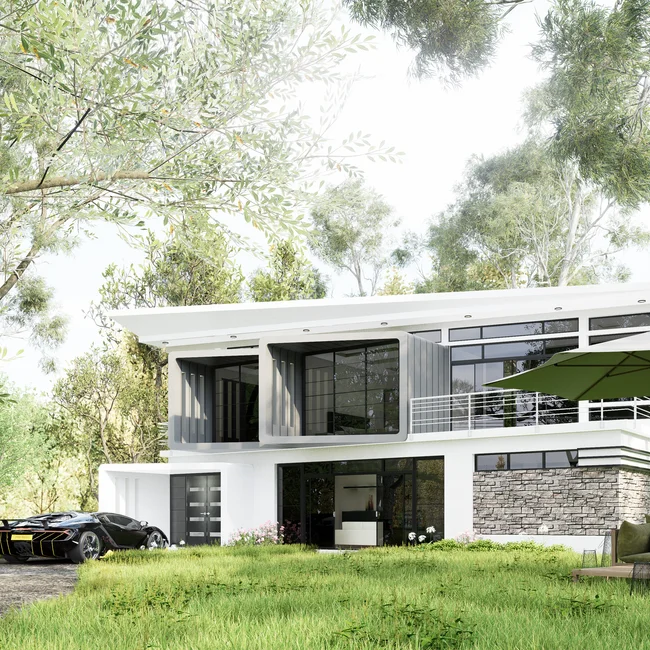
Lumion has become a familiar name in architectural visualization because it compresses what used to be a complex, multi-application pipeline into a faster, more intuitive workflow. The software is built to transform 3D models into compelling images, animations, and real-time presentations with minimal friction, making it attractive to architects, designers, and visualization artists who need to communicate ideas clearly. When clients or stakeholders can see a design in a lifelike context—complete with sunlight, materials, landscaping, and animated entourage—decision-making tends to move faster and with fewer misunderstandings. That practical benefit is why Lumion is often positioned as both a creative tool and a communication tool. The value isn’t only in beauty renders; it’s in showing how a space feels at different times of day, how people circulate through it, and how the building sits within its environment. This is especially useful when a project is early in development and the team needs a quick way to test options without spending days on heavy rendering setups.
Table of Contents
- My Personal Experience
- Understanding Lumion and Why It Matters in Visualization
- Core Strengths: Speed, Real-Time Feedback, and Visual Impact
- Typical Workflow: From 3D Model to Finished Render
- Materials and Textures: Achieving Realism Without Overcomplication
- Lighting and Atmosphere: Controlling Mood and Clarity
- Landscape, Vegetation, and Context: Making Projects Feel Real
- Animation and Walkthroughs: Communicating Space Over Time
- Performance and Hardware Considerations: Getting Smooth Results
- Expert Insight
- Integrations and Compatibility: Working with Revit, SketchUp, Rhino, and More
- Best Practices for Composition, Cameras, and Storytelling
- Professional Use Cases: Architecture, Interior Design, Landscape, and Real Estate
- Common Mistakes and How to Avoid Them
- Building a Repeatable Studio Pipeline with Lumion
- Conclusion: Making Lumion Work for Your Goals
- Watch the demonstration video
- Frequently Asked Questions
- Trusted External Sources
My Personal Experience
I first tried Lumion during my last semester when I needed to turn a basic SketchUp model into something presentable for a studio critique. At the beginning I was overwhelmed by all the menus and effects, but once I figured out the live sync and started dragging in materials, it finally felt like my design had some atmosphere instead of looking like a cardboard box. The biggest “aha” moment was adjusting the lighting and adding a simple overcast sky—suddenly the shadows made sense and the spaces read more realistically. My laptop fan sounded like it was about to take off, and I had to learn the hard way to keep trees and high-detail assets to a minimum, but the final walkthrough still impressed my classmates. Since then, I’ve used Lumion whenever I need a quick render that communicates mood without spending days tweaking settings.
Understanding Lumion and Why It Matters in Visualization
Lumion has become a familiar name in architectural visualization because it compresses what used to be a complex, multi-application pipeline into a faster, more intuitive workflow. The software is built to transform 3D models into compelling images, animations, and real-time presentations with minimal friction, making it attractive to architects, designers, and visualization artists who need to communicate ideas clearly. When clients or stakeholders can see a design in a lifelike context—complete with sunlight, materials, landscaping, and animated entourage—decision-making tends to move faster and with fewer misunderstandings. That practical benefit is why Lumion is often positioned as both a creative tool and a communication tool. The value isn’t only in beauty renders; it’s in showing how a space feels at different times of day, how people circulate through it, and how the building sits within its environment. This is especially useful when a project is early in development and the team needs a quick way to test options without spending days on heavy rendering setups.
At the same time, Lumion fits into a wider shift toward experiential design delivery. Many studios now need visuals that work across multiple channels: still images for planning submissions, short cinematic clips for social media, and walk-through videos for client meetings. A tool that can output all of these with consistent style saves time and reduces the need to constantly translate between different render engines. The speed of iteration is a major factor: instead of waiting for overnight renders, teams can adjust lighting, swap materials, or revise landscape elements and see the impact immediately. That immediacy changes how design reviews happen, because feedback becomes more precise when everyone is looking at a near-final representation rather than a vague placeholder. In practice, the best results come from combining strong modeling fundamentals with thoughtful scene composition. Lumion doesn’t replace design skill; it amplifies it by making presentation-quality output more accessible when deadlines are tight.
Core Strengths: Speed, Real-Time Feedback, and Visual Impact
One of the defining characteristics that draws people to Lumion is the balance between speed and visual impact. Traditional photorealistic rendering often involves careful sampling settings, denoising choices, render layers, and long compute times. By contrast, Lumion is built around fast feedback, allowing users to move from a basic imported model to a polished scene with lighting, context, and atmospheric effects in a comparatively short period. That speed changes the economics of visualization: you can afford to explore multiple moods, camera angles, and environmental conditions without treating each option as a major production effort. Even when the goal isn’t absolute photorealism, the ability to create convincing, emotionally engaging imagery quickly can be a competitive advantage for proposals, competitions, and stakeholder presentations. The software’s library-driven approach—materials, vegetation, people, vehicles, and effects—helps non-specialists produce scenes that feel populated and believable.
Real-time navigation is another reason Lumion feels different compared to renderers that work primarily through offline previews. Being able to walk through a scene interactively encourages better composition because you notice issues that static camera testing can miss: a tree that blocks a key view, a reflection that looks too strong, or an interior that needs additional light bounce. This leads to a more iterative process where visualization becomes part of design development rather than an afterthought at the end. Visual impact also depends on controlled storytelling, not just asset placement. With Lumion, effects like sun studies, depth of field, volumetric lighting, weather, and color grading can be adjusted to support the narrative of a project. Used thoughtfully, these tools can highlight the intended experience of a space—calm, energetic, intimate, monumental—without resorting to gimmicks. The best practice is to keep the focus on architectural intent: materials should read naturally, lighting should feel plausible, and entourage should reinforce scale and use rather than distract from the design.
Typical Workflow: From 3D Model to Finished Render
A reliable Lumion workflow usually starts with a clean, well-organized 3D model. Whether the model comes from SketchUp, Revit, Rhino, Archicad, or another modeling platform, the quality of the input heavily influences the quality of the output. Good naming conventions, sensible layer organization, and correct face orientations help prevent common issues like missing surfaces or inconsistent materials. Many teams treat the modeling file as the “source of truth,” keeping geometry edits in the authoring tool and using Lumion primarily for visualization. That separation reduces confusion and makes revisions easier, especially when multiple contributors are involved. Once the model is imported, materials are assigned or refined, often by mapping the model’s base materials to Lumion’s material system. At this stage, careful attention to scale and UV mapping pays dividends: stone should have believable texture size, wood grain should align logically, and repetition should be minimized where it would be noticeable.
After materials, context building becomes the focus. This includes terrain shaping, placing vegetation, adding surrounding buildings or site elements, and setting up the sky and sun orientation. Lumion’s strength is in rapidly building a believable setting, but it’s still important to keep an eye on realism and restraint. Too many random objects can make a scene feel artificial, while too few can make it feel sterile. Camera selection then shapes the story: eye-level shots communicate human experience, elevated views clarify site planning, and close-ups can sell material quality. When moving into output, users typically create still renders, animations, or panoramic views depending on the project’s needs. Post-processing effects—exposure, contrast, sharpening, color grading, bloom, and vignette—are often applied in the render settings to achieve a cohesive look. The most efficient approach is to create a few reusable “style presets” that align with a studio’s brand, then fine-tune per scene. With this structure, Lumion becomes a repeatable production pipeline rather than a one-off experiment each time a deadline hits.
Materials and Textures: Achieving Realism Without Overcomplication
Material quality is often what separates an average visualization from a convincing one, and Lumion provides a material system designed to be approachable while still offering meaningful control. Realism starts with choosing appropriate base textures and ensuring they are mapped correctly. Even the best texture can look wrong if the scale is off by a factor of two or if the pattern repeats obviously across a large façade. Many users find that a small investment in preparing textures—high-resolution albedo maps, normal maps for surface detail, and roughness or gloss control—delivers a big improvement. In Lumion, adjusting reflectivity and gloss is crucial for materials like polished concrete, glass, metal, and wet surfaces. Too much reflectivity can make a building look like a toy model, while too little can make it feel flat. The goal is to match the real-world behavior of light: rough surfaces scatter reflections, while smooth surfaces produce crisp highlights.
Another key to strong results is material hierarchy. Not every surface needs maximum detail; the camera’s distance and focal point should guide where you spend effort. Foreground materials typically deserve higher texture resolution and more nuanced reflection settings, while distant elements can be simplified to keep performance smooth. When using Lumion’s library materials, it’s still worth customizing them to match the project’s palette. For example, a generic brick can be made more project-specific by adjusting color tone, weathering, and displacement. Glass deserves special attention because it often defines the perceived quality of a render. Subtle tint, correct reflection strength, and believable transparency help windows read as real rather than as blank blue panels. For interiors, fabric, wood, and painted gypsum benefit from slightly imperfect roughness; perfectly uniform surfaces can look synthetic. The most effective material strategy is consistent: define a small set of calibrated materials for the project, reuse them across the model, and adjust only when the design intent requires it. That consistency makes the overall visualization feel coherent and professional, which is exactly what Lumion is meant to support under tight timelines.
Lighting and Atmosphere: Controlling Mood and Clarity
Lighting is where Lumion can quickly elevate a scene from “model-like” to emotionally persuasive. Natural daylight setups usually start with correct sun orientation, matching geographic direction and time of day if accuracy matters. Even when the lighting is artistic rather than strictly accurate, it should still feel plausible. Low-angle sun produces long shadows and warm highlights, while midday sun tends to flatten surfaces and reduce drama. Overcast lighting can be excellent for showing material color and façade detail without harsh contrast. Lumion allows rapid switching between these conditions, which is useful when a design team needs multiple deliverables—bright marketing shots, calm neutral documentation views, and dramatic dusk visuals. Atmospheric effects like haze, fog, and volumetric light can help create depth, especially on large sites where distant objects need to fade naturally.
Interior lighting requires a different mindset because the balance between artificial light and exterior daylight determines whether spaces feel inviting or washed out. In Lumion, adding area lights, spotlights, and emissive materials can simulate fixtures, but the placement and intensity must be restrained to avoid hotspots and unnatural glow. A common technique is to start with a realistic baseline, then adjust exposure and color temperature to match the intended mood. Warm lighting can make hospitality and residential interiors feel comfortable, while cooler lighting can suit contemporary offices or galleries. Reflections also play a role in lighting perception: glossy floors and glass partitions can amplify highlights, so controlling reflectivity prevents distractions. Atmospheric settings like subtle bloom can mimic camera behavior, but too much bloom reduces clarity and makes materials look plastic. The best results come from thinking like a photographer—choosing a lighting scenario, setting a clear focal point, and controlling contrast so the viewer’s eye lands where the design matters most. With consistent lighting practices, Lumion becomes a dependable tool for both mood-driven marketing imagery and clear design communication.
Landscape, Vegetation, and Context: Making Projects Feel Real
Context is often what makes a render believable, and Lumion is widely recognized for enabling quick environment building. Terrain tools, vegetation placement, and entourage assets help a building sit naturally within a site rather than floating in an empty void. The trick is to treat landscape as design, not decoration. Start by matching site levels and slopes, then add ground materials that reflect real-world construction: asphalt, concrete, gravel, planted areas, and transitions between them. Vegetation should be placed with intention—trees for shade and scale, shrubs for edges and human comfort, grasses for texture and softness. Random scattering can work for natural landscapes, but architectural sites typically need a mix of formal and informal planting to feel plausible. Lumion’s vegetation assets can add immediate richness, but the most convincing scenes use variation in species, size, and rotation to avoid repetition.
Urban context benefits from additional cues: sidewalks, curbs, street markings, signage, and adjacent massing. Even simplified neighboring buildings can help viewers understand scale and zoning relationships. People and vehicles should reinforce the story—who uses the space, when, and how. Too many animated objects can become noise, while too few can make a public space feel abandoned. For exterior night scenes, streetlights and window glow contribute to realism, but they should be consistent with the setting. Weather effects like rain and wet ground can be powerful for mood, yet they should align with the narrative and not be used as a default “make it cinematic” button. A practical approach is to build a reusable context library for your studio: a set of regional plants, common street elements, and typical furnishings that match local standards. With that foundation, Lumion becomes faster over time because each new project starts with a familiar, calibrated environment rather than a blank slate.
Animation and Walkthroughs: Communicating Space Over Time
Static images are essential, but many stakeholders understand design better when they can experience movement through space. Lumion supports animation workflows that range from simple camera paths to more cinematic sequences with multiple cuts and scene transitions. The most effective walkthroughs are designed like short films: establish the project with an exterior approach, move through key thresholds, and highlight signature spaces with controlled pacing. Camera height and lens choice matter as much as they do in photography. A human-eye perspective tends to feel more natural, while wide lenses can exaggerate space and make interiors feel larger than they are. Smooth motion is critical; overly fast camera movement can cause viewers to miss details and can feel disorienting. Lumion’s ability to preview motion in real time helps refine these choices quickly, making it easier to align the animation with the story the design team wants to tell.
Beyond camera movement, animated elements can bring a scene to life when used selectively. Subtle motion—trees moving in wind, people walking, cars passing at a distance, water rippling—adds realism and prevents the environment from feeling frozen. The key is to avoid overloading the scene with competing motion cues. If everything moves, nothing feels important. For client presentations, a calm, steady walkthrough often communicates better than an action-heavy sequence. For marketing, slightly more dynamic pacing can work, especially when paired with a strong lighting setup like golden hour or dusk. It’s also worth considering deliverable formats. Some teams need high-resolution videos for large displays, while others need compressed versions for email and web. Planning output settings early prevents last-minute compromises. When animation is treated as a design communication tool rather than a flashy extra, Lumion can produce walkthroughs that clarify spatial relationships, material transitions, and the overall experience of a project.
Performance and Hardware Considerations: Getting Smooth Results
Because Lumion emphasizes real-time navigation and rapid feedback, hardware plays a major role in user experience. A capable GPU is often the most important component, as the software relies heavily on graphics processing for rendering and viewport performance. Sufficient VRAM helps when working with large scenes, high-resolution textures, and dense vegetation. CPU and RAM also matter, especially when importing complex models or handling multiple applications at once. Storage speed can influence load times for assets and projects, making SSDs a practical upgrade for many workflows. Performance isn’t only about buying powerful hardware, though; scene management habits can dramatically improve responsiveness. Reducing unnecessary polygon density, using proxies or simplified context massing, and avoiding excessive unique textures can keep projects lightweight and stable. In many cases, the fastest workflow is the one that balances visual fidelity with pragmatic constraints.
| Aspect | Lumion | Best for |
|---|---|---|
| Workflow & ease of use | Real-time, drag-and-drop rendering with a gentle learning curve; quick setup for scenes, materials, and lighting. | Architects and designers who need fast, client-ready visuals without complex node-based setups. |
| Output quality & realism | High-quality stills, animations, and panoramas with extensive asset/effects library; realism is strong, though not always on par with top offline/path-traced renderers. | Marketing-grade visuals and smooth walkthroughs where speed and consistency matter most. |
| Performance & requirements | GPU-dependent and benefits from a powerful graphics card; large scenes can require careful optimization. | Teams with capable Windows workstations aiming for rapid iteration on medium-to-large architectural scenes. |
Expert Insight
Start with a clean, lightweight model: purge unused layers, simplify high-poly assets, and replace repeated geometry with instances before importing into Lumion. This keeps navigation smooth and reduces render times, letting you iterate on lighting and materials without performance bottlenecks.
Build your scene in passes: lock camera angles first, then dial in real-world exposure and sun position, and only afterward add reflections, volumetrics, and fine-detail effects. Save multiple effect stacks as presets per shot so you can compare looks quickly and maintain consistent grading across the full sequence. If you’re looking for lumion, this is your best choice.
Optimization inside Lumion often involves managing render effects and asset density. High-quality shadows, reflections, and certain global effects can be expensive, especially at high output resolutions. A common technique is to work in a “draft” mode while designing the scene—lower shadow quality, simplified reflections, fewer high-detail assets—then switch to a higher-quality preset for final output. This keeps iteration fast and reduces frustration. It also helps to consider the final deliverable: a social media clip doesn’t need the same settings as a 4K marketing film projected in a showroom. Another performance factor is model cleanliness. Hidden geometry, overlapping faces, and excessively detailed components can slow down the pipeline without improving the final image. Teams that establish modeling guidelines—such as limiting small bevels that won’t read on camera—often see better results in Lumion with less effort. Ultimately, smooth performance supports creativity: when the software responds quickly, users are more likely to test alternatives, refine composition, and arrive at a stronger visual story.
Integrations and Compatibility: Working with Revit, SketchUp, Rhino, and More
Lumion is commonly used alongside major modeling platforms, and its value increases when integration is smooth and predictable. Many workflows rely on live synchronization or rapid re-import so that design changes in the modeling tool can be reflected in the visualization without rebuilding the entire scene. This is particularly helpful in fast-moving projects where geometry updates happen daily. The practical goal is to preserve work done in Lumion—materials, landscaping, camera angles, and effects—while allowing the building model to evolve. To make this reliable, it’s important to maintain consistent object IDs or layering structures and avoid drastic changes to the model’s organization. For example, deleting and recreating large portions of geometry can cause material assignments to break, while incremental edits tend to preserve connections more successfully.
Compatibility also affects how you prepare models. Different software exports handle normals, smoothing, and instancing in different ways. Taking time to test a small sample model can reveal the best export settings for your pipeline. For BIM tools, controlling detail level is crucial; highly detailed families can inflate polygon counts quickly. For Rhino or other NURBS-based tools, mesh settings influence both appearance and performance. A consistent approach is to export with enough tessellation to look smooth in close-ups, but not so much that the scene becomes heavy. Another integration consideration is coordinate and scale management. Ensuring that the model imports at the correct scale prevents problems with material texture size, vegetation proportions, and camera movement. Many teams also use a “visualization-ready” model that is derived from the design model but cleaned for rendering—removing unnecessary interior components for exterior shots, for instance. With these habits, Lumion becomes a dependable downstream tool that supports design iteration rather than fighting it.
Best Practices for Composition, Cameras, and Storytelling
Strong visualization depends as much on composition as it does on software features, and Lumion rewards users who think like photographers and filmmakers. Composition starts with choosing what the image is about. Is the focus the entry sequence, the façade rhythm, the interior atmosphere, or the relationship to the landscape? Once the focal point is clear, camera placement can reinforce it through framing, leading lines, and foreground elements. A low camera angle can emphasize monumentality, while a slightly elevated angle can clarify geometry and circulation. Keeping vertical lines straight often improves architectural credibility, especially for exterior shots where tilted perspectives can feel amateurish. Depth is another major factor. Adding foreground elements—plants, furniture, or structural frames—can create layering that guides the viewer into the scene. However, foreground elements should not obscure the design; they should support it.
Color and contrast are also part of storytelling. A cohesive palette makes a scene feel intentional, while random color variation can look chaotic. Lumion’s post-processing effects can help unify the look, but they should be applied with restraint. Over-sharpening, heavy vignettes, or exaggerated saturation can reduce realism and distract from material quality. A good practice is to develop a few visual “moods” that align with the project: a bright daytime set for clarity, a golden-hour set for warmth and marketing appeal, and a dusk set for atmosphere. Each mood can reuse similar camera angles so stakeholders can compare options easily. When producing multiple images, consistency matters. Reusing camera heights, lens choices, and grading styles makes the set feel like a coherent presentation rather than a collection of unrelated experiments. Lumion can generate impressive visuals quickly, but the most persuasive work comes from deliberate choices—what to show, what to hide, and how to guide attention through space.
Professional Use Cases: Architecture, Interior Design, Landscape, and Real Estate
Lumion is used across a range of industries because the core need—communicating spatial ideas—appears in many contexts. In architecture, it supports everything from early concept massing visuals to polished marketing imagery for completed designs. For planning and approvals, clear daylight images can demonstrate setbacks, material intent, and site integration. For competitions, more dramatic scenes can help convey identity and atmosphere. Interior designers often use Lumion to show lighting moods, material combinations, and furniture layouts in a way that clients can understand without reading technical drawings. The ability to create multiple views quickly is valuable when exploring options like alternative finishes or different fixture styles. Landscape architects benefit from vegetation assets and terrain shaping tools that allow them to visualize planting density, seasonal character, and the relationship between hardscape and softscape.
Real estate and development teams also rely on visualization to pre-sell projects, secure financing, or market leasing opportunities. In that context, speed and consistency are critical because campaigns often require a large number of images, short animations, and updates as the design evolves. Lumion can support a production approach where a base scene is built once and then reused across multiple unit types or phases, reducing cost per deliverable. Another use case is education, where students can rapidly translate design ideas into compelling visuals and learn the relationship between form, light, and material. For all these fields, the key is aligning output with purpose. A design development image might prioritize clarity and accuracy, while a marketing hero shot might prioritize mood and brand identity. Lumion is flexible enough to serve both, especially when users develop repeatable presets and scene templates. The tool becomes even more valuable when the team treats visualization as part of the design process rather than a final step added at the end.
Common Mistakes and How to Avoid Them
Many beginners get discouraged by results that look artificial, but the issues are usually predictable and fixable. One common mistake is relying on default materials without adjusting scale, roughness, and reflection behavior. Real surfaces are rarely perfect; small variations in gloss and subtle texture depth make a big difference. Another frequent problem is overusing effects. Strong bloom, heavy vignette, excessive depth of field, or extreme color grading can quickly push an image into an unrealistic, game-like look. Effects should support the subject, not become the subject. Lighting mistakes are also common, especially in interiors where too many lights are added to compensate for a dark scene. A better approach is to balance exposure and use fewer, more intentional light sources that reflect how the space would actually be lit. The same principle applies to exterior night scenes: a few well-placed lights with believable intensity often look better than dozens of overly bright fixtures. If you’re looking for lumion, this is your best choice.
Scene clutter is another pitfall. Lumion provides a large asset library, and it can be tempting to fill every empty area with objects. In professional visualization, negative space is useful; it allows the architecture to breathe and makes the composition easier to read. Repetition is also a telltale sign of rushed work—identical trees in a row, the same person duplicated multiple times, or repeated texture patterns across a large surface. Small adjustments in rotation, scale, and placement can reduce repetition dramatically. Finally, weak camera choices can undermine an otherwise good scene. Cameras placed too high, too wide, or at odd angles can distort proportions and make spaces feel untrustworthy. Establish a consistent camera height, use lens settings that mimic real photography, and verify that the composition communicates the intended design story. When these mistakes are addressed systematically, Lumion becomes much easier to control, and the resulting visuals look more deliberate and credible.
Building a Repeatable Studio Pipeline with Lumion
For teams producing visualization regularly, the biggest gains come from standardizing how projects are set up. A repeatable Lumion pipeline usually includes template scenes, effect presets, calibrated materials, and a consistent naming structure. Templates can include a default sky setup, a few camera rigs, and prebuilt context elements like roads, sidewalks, and vegetation palettes. Effect presets can be tailored for different deliverables: a neutral daylight preset for design reviews, a warm marketing preset for exterior hero shots, and an interior preset optimized for balanced exposure. When these tools are prepared in advance, artists spend less time reinventing the wheel and more time refining project-specific details. Standardization also helps maintain brand consistency across a portfolio, which is valuable for firms that want a recognizable visual identity.
Another part of a mature workflow is version control and change management. Keeping a clear structure for model exports, texture assets, and Lumion project files reduces the risk of broken links or missing maps when files move between computers. Teams often benefit from a shared asset library with approved materials and entourage that match local context and company standards. Quality control checklists can also prevent last-minute issues: verify texture scale, check glass reflections, confirm camera verticals, review vegetation repetition, and ensure people and vehicles are appropriately scaled. Rendering schedules matter too. If final outputs require high settings, plan time for test renders at reduced resolution so you can catch issues early. With these habits, Lumion becomes not just a tool used by a single specialist, but a reliable production system that multiple team members can contribute to without sacrificing consistency. The result is faster turnaround, fewer surprises, and visuals that consistently support design intent and client communication.
Conclusion: Making Lumion Work for Your Goals
Lumion is most effective when it is treated as a bridge between design intent and audience understanding, turning technical models into visuals that communicate mood, scale, and material reality. The strongest outcomes come from a balanced approach: clean source models, calibrated materials, purposeful lighting, restrained effects, and thoughtful composition. Speed is a major advantage, but speed alone doesn’t guarantee quality; the real benefit is the ability to iterate quickly and make better decisions through visual feedback. Whether the deliverable is a set of still images for approvals, a cinematic walkthrough for marketing, or a quick design-review scene for internal discussion, consistent workflows and templates help maintain quality under pressure. By focusing on realism where it matters, simplifying where it doesn’t, and keeping storytelling at the center, Lumion can reliably produce presentations that feel clear, persuasive, and professional.
As projects become more complex and timelines become tighter, the ability to produce compelling visualization without an overly complicated pipeline becomes increasingly valuable. Building a repeatable process—supported by good modeling discipline, optimized scene management, and a small library of proven presets—helps teams get predictable results and reduces the learning curve for new staff. The most important step is aligning every decision with the purpose of the image or animation: what needs to be understood, what needs to be felt, and what needs to be remembered. When those goals guide lighting, materials, context, and camera choices, the software becomes a powerful extension of design communication rather than a separate task. With that mindset, Lumion remains a practical, high-impact choice for creating visuals that move projects forward and help audiences connect with the architecture.
Watch the demonstration video
In this video, you’ll learn how Lumion helps you turn 3D models into compelling architectural visualizations. It covers the basics of importing designs, applying materials, adding lighting and landscapes, and using effects to create realistic renders and animations. By the end, you’ll understand a simple workflow for producing polished presentations quickly.
Summary
In summary, “lumion” is a crucial topic that deserves thoughtful consideration. We hope this article has provided you with a comprehensive understanding to help you make better decisions.
Frequently Asked Questions
What is Lumion used for?
Lumion is real-time 3D rendering software used to create images, videos, and panoramas from architectural and landscape models.
Which 3D modeling programs work with Lumion?
Lumion supports many tools via LiveSync or file import, including SketchUp, Revit, Rhino, Archicad, and 3ds Max (typically through common formats like FBX, DAE, or OBJ).
What is Lumion LiveSync?
LiveSync is a plugin that keeps your CAD/modeling software and Lumion synchronized, letting you see model edits update in Lumion in real time.
What hardware do I need to run Lumion well?
A strong dedicated GPU is most important, along with a modern multi-core CPU, ample RAM, and fast SSD storage; exact requirements vary by Lumion version and project size.
Can Lumion render animations and 360 panoramas?
Yes, Lumion can produce animated walkthroughs, flyovers, and 360-degree panoramas for interactive viewing and sharing.
Is Lumion easy to learn for beginners?
Many users find it easy to jump into thanks to its intuitive drag-and-drop workflow and rich library of built-in assets in **lumion**, but truly polished results still come with practice—especially when it comes to dialing in lighting, materials, and camera settings.
📢 Looking for more info about lumion? Follow Our Site for updates and tips!

Trusted External Sources
- Lumion | Industry-Leading 3D Rendering Software For Architects …
Transform your design workflow with Lumion’s powerful real-time rendering software. From concept to final render, visualize every step with speed, quality, …
- Lumion · The operating system for career schools
Lumion gives school admins and operators everything they need to capture more leads, enroll more students, collect more tuition, and keep things running …
- Why y’all use AutoCAD, SketchUp & Lumion? – Reddit
Oct 8, 2026 … Lumion is just pretty bad compared to the alternatives but all of those are so easy to learn, so I honestly don’t care what people use as …
- Miracle Mist – LUMION skin
Face-first hypochlorous acid skincare that soothes visible redness, revitalizes breakout-prone skin, and helps strengthen your skin barrier—trusted for 10 years, now with lumion.
- How to split solid object faces for Lumion – McNeel Forum
Jun 26, 2026 … 1- You can offset your solid using “offset surface “command. 2- Then explode the entire geometry. 3- Then you have interior faces separate from the exterior … If you’re looking for lumion, this is your best choice.