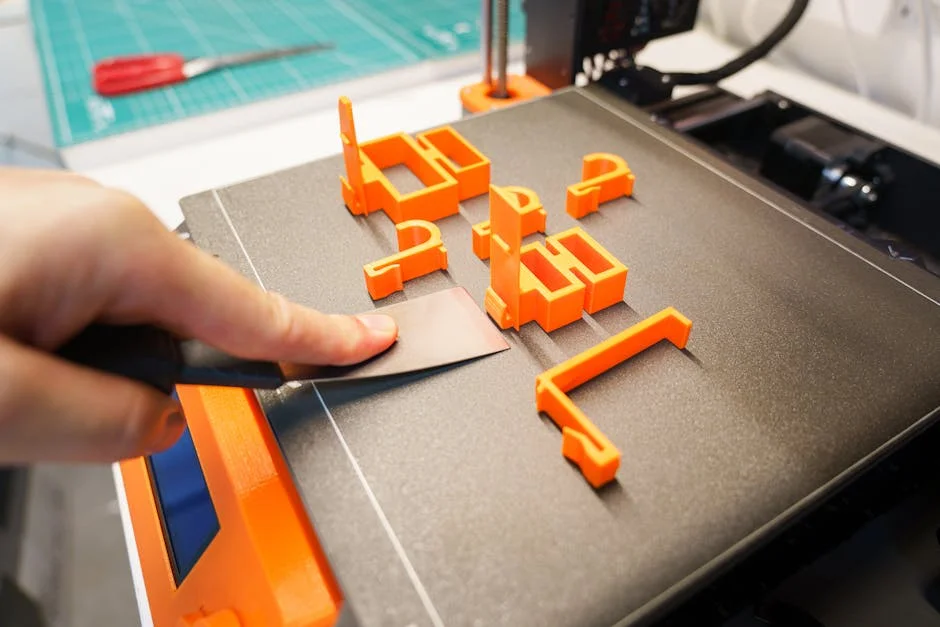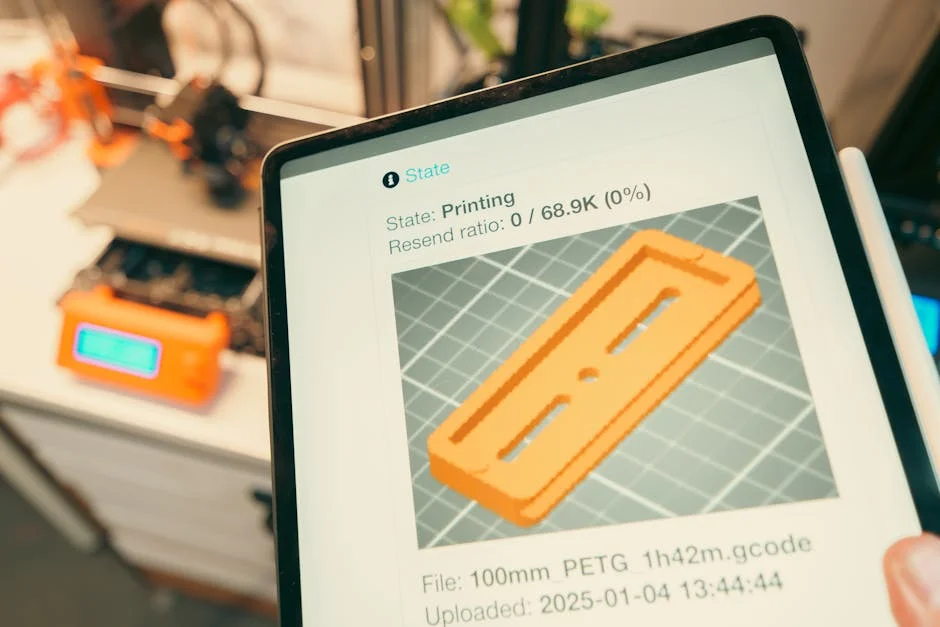
Finding the best cad for 3d printing depends less on hype and more on how well a tool matches the way you design, the way you manufacture, and the way your printer behaves in the real world. A “good” modeling app for general product design can still be frustrating for additive manufacturing if it makes it hard to control wall thickness, tolerances, watertight geometry, or export settings. The most useful CAD for 3D printing helps you create solid, manifold models with predictable dimensions, clean topology, and features that survive slicing without unexpected gaps or non-manifold edges. It also needs to support the kind of geometry you actually build—mechanical parts with tight fits, sculpted miniatures, functional enclosures, organic cosplay pieces, or parametric assemblies. Those categories push you toward different modeling paradigms: parametric solids, direct modeling, polygon sculpting, or hybrid workflows. Picking the best cad for 3d printing is really about selecting the modeling approach that reduces rework and increases print success.
Table of Contents
- My Personal Experience
- Choosing the Best CAD for 3D Printing: What Matters Most
- CAD Modeling Styles for 3D Printing: Parametric, Direct, Sculpt, and Hybrid
- Fusion 360: A Versatile Choice for Functional 3D Prints
- FreeCAD: Open-Source Parametric CAD with Serious Potential
- Tinkercad: The Simplest Entry Point for Printable Models
- Onshape: Cloud CAD for Collaboration and Iteration
- SolidWorks: Industry-Grade Parametric CAD for Print-Ready Engineering
- Expert Insight
- Blender: Powerful Mesh Modeling for Artistic and Organic Prints
- Shapr3D: Fast Direct Modeling on Tablet and Desktop
- Design for 3D Printing: Tolerances, Wall Thickness, and Print-Oriented Features
- Exporting and File Formats: STL vs 3MF and How CAD Settings Affect Prints
- How to Pick the Right CAD Based on Your 3D Printing Goals and Budget
- Practical Workflow Tips: From CAD to Slicer to Successful Print
- Watch the demonstration video
- Frequently Asked Questions
- Trusted External Sources
My Personal Experience
After bouncing between a few “best CAD for 3D printing” recommendations, I realized the right choice depended more on my workflow than the hype. I started with Tinkercad because I just wanted to get my first bracket printed without learning a whole new skill, and it worked—until I needed tighter dimensions and cleaner holes. I tried Blender next, but it felt like I was fighting the tool for simple mechanical parts. What finally clicked for me was Fusion 360: being able to set parameters, tweak a single measurement, and re-export an STL without rebuilding the model saved me a ton of time, especially when my first prints came out a hair too tight. I still keep Tinkercad around for quick mashups, but for anything functional that needs to fit other parts, Fusion has been the most “best” in my day-to-day use.
Choosing the Best CAD for 3D Printing: What Matters Most
Finding the best cad for 3d printing depends less on hype and more on how well a tool matches the way you design, the way you manufacture, and the way your printer behaves in the real world. A “good” modeling app for general product design can still be frustrating for additive manufacturing if it makes it hard to control wall thickness, tolerances, watertight geometry, or export settings. The most useful CAD for 3D printing helps you create solid, manifold models with predictable dimensions, clean topology, and features that survive slicing without unexpected gaps or non-manifold edges. It also needs to support the kind of geometry you actually build—mechanical parts with tight fits, sculpted miniatures, functional enclosures, organic cosplay pieces, or parametric assemblies. Those categories push you toward different modeling paradigms: parametric solids, direct modeling, polygon sculpting, or hybrid workflows. Picking the best cad for 3d printing is really about selecting the modeling approach that reduces rework and increases print success.

3D printing adds constraints that don’t always show up in other manufacturing methods. Printers have nozzle diameters, layer heights, resin cure behaviors, shrinkage, and anisotropic strength; those realities affect how you should model fillets, ribs, supports, chamfers, holes, and snap-fits. CAD that makes it easy to define parameters (like clearance, press-fit offsets, and wall thickness) can dramatically speed up iteration. At the same time, the “best” tool is also the one you will actually use consistently: a powerful package with a steep learning curve can be less productive than a simpler modeler that produces clean STL/3MF files quickly. Licensing cost, hardware requirements, collaboration features, and export formats also matter, especially if you move between slicers, mesh repair tools, and simulation. When you evaluate CAD for 3D printing, focus on reliability of solids, control over dimensions, export quality, and how quickly you can go from idea to print-ready geometry. If you’re looking for best cad for 3d printing, this is your best choice.
CAD Modeling Styles for 3D Printing: Parametric, Direct, Sculpt, and Hybrid
The best cad for 3d printing often depends on which modeling style fits your project. Parametric solid modeling is ideal for functional parts, fixtures, brackets, and enclosures because dimensions are explicit and editable. You define sketches, constraints, and features (extrudes, revolves, fillets, patterns), and you can later adjust a parameter to regenerate the model. That’s extremely valuable in 3D printing where you may print a test piece, measure fit, then tweak clearance by 0.2 mm and reprint. Parametric history also supports design families: one bracket with multiple hole patterns, or one enclosure scaled for different electronics. Direct modeling (sometimes called “push-pull”) is faster for concepting and quick edits when you don’t want to manage a feature tree, but it can become harder to maintain precise intent across revisions. For many makers, a hybrid approach—parametric for critical geometry and direct edits for quick tweaks—delivers the best results.
Organic sculpting and polygon modeling are common for figurines, miniatures, character busts, and decorative models. These tools excel at manipulating surfaces and forms, but they can produce meshes that are not watertight or that include self-intersections, especially if you’re not careful. For resin printing, sculpting tools can be the best cad for 3d printing when the goal is surface detail and aesthetic quality. For FDM functional parts, sculpted meshes are often less convenient because dimensions and tolerances are less controlled. Hybrid workflows are increasingly popular: create a mechanical base in a parametric CAD tool, then export to a sculpting app for detail, then return to a mesh repair or remesh step before slicing. Understanding these modeling styles helps you choose software that matches your typical prints, reduces the need for repair, and keeps your workflow predictable from CAD to slicer.
Fusion 360: A Versatile Choice for Functional 3D Prints
Autodesk Fusion 360 is frequently considered among the best cad for 3d printing for functional parts because it combines parametric modeling, direct editing, assemblies, and manufacturing-oriented tools in one environment. For 3D printing, the parametric workflow is a major advantage: you can define user parameters for wall thickness, screw boss diameter, hole clearance, and snap-fit deflection, then adjust them after test prints. Fusion’s sketch constraints and dimensioning make it easier to model parts that must mate with real components like bearings, motors, heat-set inserts, and standard fasteners. It also supports construction planes, patterns, and robust filleting, which matter when you need strength and printability. Fusion can export STL and 3MF with control over mesh refinement; that helps you balance file size and surface smoothness, especially on curved surfaces that can show faceting when mesh quality is too low.
Fusion 360 also adds value through tools adjacent to modeling. Basic simulation can help identify weak points in a bracket before you commit to print time, and the assembly workspace helps check clearances between moving parts. For many users, the integrated rendering and drawing capabilities are less important for printing, but documentation can help when you’re building a kit or sharing a design. Fusion’s learning curve is moderate; it’s approachable for beginners yet deep enough for advanced projects. Licensing can be a deciding factor: there are personal-use options with limitations, and commercial licenses for businesses. If your focus is functional FDM parts, jigs, fixtures, and iterative prototypes, Fusion 360 remains a strong candidate for the best cad for 3d printing because it keeps dimensional control front and center while still offering enough flexibility for creative design changes.
FreeCAD: Open-Source Parametric CAD with Serious Potential
FreeCAD is often recommended as the best cad for 3d printing for users who want a powerful parametric modeler without subscription costs. It is open-source and community-driven, and its parametric approach suits functional parts where you need repeatable edits. FreeCAD’s workbench structure can feel different from commercial CAD suites, but it gives you targeted toolsets for part design, sketching, assemblies (via add-ons), and mesh operations. For 3D printing, the Part Design and Sketcher workbenches are the core: you can build robust solids with constraints and dimensions, then export to STL or 3MF via mesh tools. Because many printing problems come from non-manifold geometry, FreeCAD’s emphasis on solid modeling can reduce common mesh issues compared to purely polygon-based tools, especially when you keep features simple and avoid tiny faces and sliver surfaces.
FreeCAD shines when you need control and transparency. You can define spreadsheets of parameters, create design tables, and build models that update predictably. That’s useful for 3D printing product variants, adapters, mounts, and replacement parts. The trade-off is that FreeCAD can require more patience: occasional workflow quirks, add-on management, and the need to understand best practices for stable models. Export quality is generally good when you adjust mesh tessellation appropriately, but you should still validate your output in a slicer or mesh checker when you’re pushing complex geometry. If you’re comfortable learning a tool that rewards methodical modeling, FreeCAD can absolutely be the best cad for 3d printing for budget-conscious makers, educators, and small teams that want long-term access to their designs without vendor lock-in.
Tinkercad: The Simplest Entry Point for Printable Models
Tinkercad is widely considered the best cad for 3d printing for absolute beginners and classrooms because it removes most of the friction that makes traditional CAD intimidating. It runs in a browser, uses a simple drag-and-drop approach, and focuses on combining primitive shapes through boolean operations. For many practical printing needs—name tags, basic brackets, cable clips, simple enclosures, and quick prototypes—Tinkercad is surprisingly effective. Its simplicity also reduces the chance of creating broken geometry; the shapes are generally solid and export cleanly as STL, which is exactly what a beginner needs to get a first successful print. Because 3D printing often starts as a hands-on hobby, the ability to model something quickly and see it printed the same day can matter more than advanced features.

The limitations become clear as projects grow. Complex parametric edits, advanced constraints, and controlled filleting are not Tinkercad’s strengths. If you need precise mechanical fits, you may find yourself approximating dimensions instead of building a model that’s easy to revise. Even so, many experienced makers keep Tinkercad in their toolbox for fast boolean-based tasks and simple remixing. For schools and libraries, it can be the best cad for 3d printing because it lowers the barrier to entry, works on modest hardware, and encourages experimentation. If you anticipate moving into more complex functional designs, you can treat Tinkercad as a stepping stone: learn basic 3D thinking, then transition to a parametric CAD tool once you start caring deeply about tolerance stacks, revision control, and reusable design intent.
Onshape: Cloud CAD for Collaboration and Iteration
Onshape is often a top contender for the best cad for 3d printing when collaboration, versioning, and access from multiple devices are priorities. As a cloud-native parametric CAD platform, it allows you to model in a browser while maintaining robust feature history, configurations, and assemblies. For 3D printing teams—makerspaces, robotics clubs, startups, or remote collaborators—Onshape’s built-in version control is a major advantage. You can branch and merge designs, track changes, and avoid the “which file is the latest” problem that frequently slows down iterative printing. Parametric modeling makes it easy to adjust clearances and re-export without rebuilding the design from scratch. Onshape also tends to run well on hardware that might struggle with heavy desktop CAD, since much of the computation is handled server-side.
From a print-readiness perspective, Onshape produces clean solids and supports standard export formats used in slicing workflows, including STL. You can set export resolution to manage curved surface quality, which affects how smooth a cylindrical part looks after printing. The platform’s collaboration features can also improve print outcomes: a teammate can review geometry, point out thin walls, or suggest chamfers to reduce support needs before you waste filament or resin. The main consideration is licensing and privacy: free plans may require public documents, which may not be suitable for proprietary designs. If your workflow involves frequent iteration, shared libraries of parts, and multiple contributors, Onshape can be the best cad for 3d printing because it reduces friction around revision management while keeping the benefits of parametric modeling.
SolidWorks: Industry-Grade Parametric CAD for Print-Ready Engineering
SolidWorks is frequently viewed as the best cad for 3d printing for professionals who already operate in an engineering environment and need robust parametric control, assemblies, and proven drafting workflows. For functional 3D printing, SolidWorks offers precise sketching, stable feature histories, and strong tools for patterns, configurations, and design tables. Those capabilities matter when you print jigs, fixtures, housings, and end-use parts where geometry must be repeatable and dimensionally accurate. SolidWorks also has mature tools for evaluating interference in assemblies and for creating standardized features like ribs, bosses, and fillets—elements that can be optimized for strength and printability. When you’re modeling parts that will be printed and then fastened, pressed, or snapped into place, SolidWorks’ predictability can save significant time over multiple iterations.
Expert Insight
Choose CAD software that supports parametric modeling and exports clean STL/3MF files; this makes it easy to adjust dimensions later and reduces mesh errors. Before exporting, run a quick check for watertight solids (no holes, self-intersections, or non-manifold edges) to avoid slicer failures. If you’re looking for best cad for 3d printing, this is your best choice.
Design with printing constraints in mind: add fillets to reduce stress points, keep wall thickness within your printer’s capabilities, and include clearances for moving parts (start around 0.2–0.4 mm for FDM, 0.1–0.2 mm for resin). Validate your model by importing the export back into the CAD tool or a mesh viewer to confirm scale, orientation, and that fine details survived the conversion. If you’re looking for best cad for 3d printing, this is your best choice.
Another advantage is ecosystem maturity: many companies have established libraries, supplier parts, and best practices around SolidWorks, which can translate into faster design-to-print cycles. Export settings for STL are straightforward, and with the right resolution you can achieve smooth curves without bloated files. The trade-off is cost and accessibility. SolidWorks licensing is typically more expensive than hobbyist-focused tools, and the software is geared toward professional workflows rather than casual experimentation. Still, for engineering teams that treat 3D printing as part of product development—or as a method for producing tooling and fixtures—SolidWorks can be the best cad for 3d printing because it offers a stable, widely supported platform with strong dimensional fidelity and proven modeling discipline.
Blender: Powerful Mesh Modeling for Artistic and Organic Prints
Blender is often the best cad for 3d printing for creators focused on artistic, organic, or stylized models rather than dimension-driven mechanical parts. It is a polygon and sculpting powerhouse with advanced tools for sculpting, retopology, modifiers, and texturing. For 3D printing, Blender’s sculpt mode enables high-detail surfaces that are difficult to produce in traditional parametric CAD. Miniatures, cosplay props, figurines, terrain pieces, and decorative objects often benefit from Blender’s artistic workflow. With modifiers like Mirror, Array, Boolean, and Subdivision, you can build complex shapes quickly. The key is to ensure printability: watertight meshes, consistent thickness, and avoidance of self-intersections. Blender’s add-ons and built-in analysis tools can help check manifoldness, and many users rely on mesh cleanup steps before exporting to STL.
| CAD Tool | Best For | Why It’s Great for 3D Printing |
|---|---|---|
| Fusion 360 | Hobbyists & product design | Parametric modeling + solid tools, easy STL/3MF export, good balance of power and usability. |
| FreeCAD | Budget-friendly parametric CAD | Free and open-source, strong parametric workflow, solid export options for printable parts. |
| Tinkercad | Beginners & quick models | Browser-based and simple, fast for basic shapes, straightforward export for slicing. |

Because Blender is mesh-based, it can be less convenient for exact fits like bearing seats or screw threads with known standards. However, you can still model accurately by using numeric inputs, snapping, and careful measurement tools. A common hybrid workflow is to design critical mechanical interfaces in a parametric tool, then import the geometry into Blender for aesthetic shaping, engraving, or sculpted detail. After that, you may use mesh repair software or Blender’s own cleanup tools to ensure the final STL slices correctly. Blender is free, actively developed, and supported by a massive community, which makes it appealing for hobbyists and professionals alike. If your goal is visually rich models and you’re comfortable learning mesh discipline, Blender can be the best cad for 3d printing for artistic projects where surface quality and creative freedom matter most.
Shapr3D: Fast Direct Modeling on Tablet and Desktop
Shapr3D is a strong candidate for the best cad for 3d printing when speed, mobility, and an intuitive modeling experience are priorities. Built around direct modeling and a touch-first workflow (especially on iPad with Apple Pencil), Shapr3D makes it easy to sketch ideas and turn them into solid geometry quickly. For many makers, the ability to design on a tablet at a workbench, in a workshop, or on the go can dramatically increase iteration speed. Shapr3D supports precise dimensions, constraints, and common solid operations like extrude, revolve, fillet, chamfer, and boolean. That’s enough for a wide range of printable parts: mounts, brackets, organizers, enclosures, adapters, and custom tooling. When you need to adjust a dimension after a test print, direct modeling can be faster than navigating a complex history tree, provided your design intent is simple.
For 3D printing workflows, export quality and format support are critical, and Shapr3D typically provides solid exports suitable for slicers. The main consideration is how you manage revisions and parameter-driven families of parts; direct modeling can be less systematic for designs that require repeated changes across multiple features. Some users address this by keeping sketches and reference geometry clean and by naming key dimensions carefully. Pricing can also influence the decision: Shapr3D is polished and efficient, but advanced export options and professional features may require a paid plan. If your typical prints involve rapid prototyping, ergonomic shapes, and a streamlined modeling process, Shapr3D can be the best cad for 3d printing because it emphasizes speed and usability without sacrificing the ability to produce accurate, watertight solids.
Design for 3D Printing: Tolerances, Wall Thickness, and Print-Oriented Features
Even the best cad for 3d printing can’t compensate for design choices that ignore printer behavior. Successful prints come from modeling with tolerances, wall thickness, and feature orientation in mind. For FDM printing, holes often print undersized due to extrusion width and cooling; designing a 5.0 mm hole may yield a smaller result unless you add clearance or plan to drill it. For resin printing, shrinkage and cure behavior can slightly alter dimensions, and thin walls may warp during post-curing. A CAD tool that makes it easy to adjust dimensions and regenerate geometry helps you dial in these variables quickly. Wall thickness should be chosen based on nozzle size and intended strength; extremely thin walls can lead to weak prints, while overly thick sections can cause warping or long print times. Adding fillets can improve strength by reducing stress concentrations, and chamfers can improve printability by reducing the need for supports on sharp overhangs.
Print-oriented features include ribs, gussets, and boss reinforcements that strengthen parts without adding excessive material. Snap-fits are common in 3D printed assemblies, but they require careful modeling: consistent thickness, controlled flex zones, and generous radii to prevent cracking along layer lines. Threaded features can be modeled directly, but for many printers it’s better to use heat-set inserts or captive nuts; CAD that includes standard hardware libraries and makes it easy to model pockets and bosses is valuable. Also consider bridging and overhang angles: designing a 45-degree chamfer can avoid support material and improve surface finish. The best cad for 3d printing is the one that helps you encode these manufacturing rules into your models—through parameters, reusable templates, or consistent feature strategies—so each new design starts closer to “print-ready” and requires fewer trial-and-error iterations.
Exporting and File Formats: STL vs 3MF and How CAD Settings Affect Prints
Export settings can determine whether your model slices cleanly, prints smoothly, and matches your intended dimensions, which is why the best cad for 3d printing should offer clear control over mesh generation. STL is the most common format, but it only stores triangulated geometry and doesn’t include units, colors, or multiple bodies in a robust way. That can lead to scaling mistakes if you mix millimeters and inches between CAD and slicer. 3MF is a newer format that can include units, multiple parts, and sometimes metadata like colors or materials, depending on the toolchain. When your CAD supports 3MF export and your slicer handles it well, it can reduce workflow errors. Regardless of format, mesh resolution is crucial: low tessellation makes curved surfaces appear faceted, while overly high tessellation can create massive files that slow down slicing without visible benefit. A good export workflow selects a resolution that preserves functional geometry while keeping file sizes manageable.

Another key factor is ensuring the exported mesh is watertight (manifold) and free of inverted normals or self-intersections. Solid-modeling CAD tools generally export cleaner meshes, but complex booleans and tiny features can still create errors. Checking the exported file in your slicer’s preview mode can reveal gaps, missing faces, or unexpected internal walls. Some CAD packages include mesh inspection or repair tools; others rely on external utilities like mesh fixers. Also consider how your CAD handles multi-body designs: sometimes you want separate parts exported as separate meshes, and sometimes you want a combined assembly for printing as one piece. The best cad for 3d printing makes these choices obvious and repeatable, allowing you to export with consistent units, predictable resolution, and minimal post-processing so your slicer receives exactly the geometry you intended.
How to Pick the Right CAD Based on Your 3D Printing Goals and Budget
Selecting the best cad for 3d printing becomes easier when you match software to specific goals: functional engineering parts, artistic sculpts, educational projects, or collaborative product development. If you print mechanical components with tight tolerances, prioritize parametric solid modeling with strong sketch constraints, stable filleting, and reliable export. Fusion 360, Onshape, SolidWorks, and FreeCAD typically fit that profile, with differences in licensing, collaboration, and learning curve. If you print miniatures, cosplay details, or decorative models, prioritize sculpting tools, mesh control, and surface detail; Blender and other sculpting-centric tools can be a better fit. For beginners or quick one-off designs, Tinkercad can be a practical choice that gets you to a printable STL quickly without a steep learning investment. For mobile-first designers, Shapr3D can accelerate iteration and make CAD feel less like “software” and more like sketching in 3D.
Budget and long-term access matter as much as features. Subscription tools can be excellent, but you should consider what happens if you stop paying—can you still access your designs, export files, and revise old parts? Open-source options can be reassuring for longevity, while cloud tools can be ideal for teams that value version control and easy sharing. Hardware is another constraint: heavy desktop CAD may require a capable GPU and plenty of RAM, while browser-based CAD can run on modest machines. Finally, consider your workflow beyond CAD: do you often repair meshes, add supports, or customize models for different printers? The best cad for 3d printing is the one that integrates smoothly with your slicer, your measurement tools, and your iteration habits. When the software fits your goals, you spend less time fighting menus and more time producing reliable prints that match your intent.
Practical Workflow Tips: From CAD to Slicer to Successful Print
A consistent workflow helps you get more value from the best cad for 3d printing because it reduces the random variables that lead to failed prints. Start by modeling with clear reference geometry and avoid unnecessary micro-details that won’t survive your printer’s resolution. Use parameters for critical dimensions like clearance, wall thickness, and hole sizes, and keep notes on what values work for your specific printer and material. When you export, use a known unit system (typically millimeters) and keep export presets for common quality levels—draft, standard, and high—so you don’t have to guess tessellation every time. After export, open the file in your slicer and inspect layer previews around thin walls, holes, and overhangs. Many issues show up immediately in preview: missing top layers due to thin walls, fragile bridges, or internal cavities that trap resin. Catching these problems before printing saves time and material.
For functional prints, test small calibration features instead of printing an entire assembly. If you’re designing a press-fit, print a small coupon with the mating geometry and evaluate fit, then adjust parameters in CAD. For threaded parts, consider whether printed threads are appropriate or whether inserts are better; model the insert pockets accordingly. For aesthetic models, ensure the mesh is manifold and consider adding drainage holes for resin prints. Orientation decisions often matter more than minor CAD tweaks: orient parts to maximize strength along layer lines, reduce supports on visible surfaces, and minimize warping on large flat areas. Keep a record of successful settings and model parameters so you can repeat results. With a disciplined process, the best cad for 3d printing becomes a predictable production tool rather than a source of trial-and-error, letting you iterate faster and achieve prints that match your design intent on the first or second attempt.
Ultimately, the best cad for 3d printing is the one that aligns with your modeling style, your budget, and your need for dimensional accuracy or artistic freedom, while exporting clean geometry that slices without surprises. When your CAD choice supports your typical prints—whether that means parametric control for functional parts, sculpting power for organic models, or collaboration tools for teams—you spend less time repairing files and more time producing reliable, high-quality results.
Watch the demonstration video
In this video, you’ll learn which CAD programs are best for 3D printing and how to choose the right one for your skill level and projects. It compares popular options, highlights key features like parametric modeling and STL export, and shares practical tips to design clean, printable parts with fewer errors. If you’re looking for best cad for 3d printing, this is your best choice.
Summary
In summary, “best cad for 3d printing” is a crucial topic that deserves thoughtful consideration. We hope this article has provided you with a comprehensive understanding to help you make better decisions.
Frequently Asked Questions
What is the best CAD software for 3D printing overall?
Fusion 360 is widely considered the **best cad for 3d printing** because it combines powerful parametric modeling, robust assembly tools, and reliable export options—while still offering accessible licensing for hobbyists and makers.
What’s the best free CAD for 3D printing beginners?
Tinkercad is a great free starting point for beginners, letting you design simple parts, make quick edits, and learn the basics of 3D modeling right in your browser—making it a strong contender when you’re looking for the **best cad for 3d printing**.
Which CAD is best for precise, dimensioned mechanical parts?
Fusion 360, SolidWorks, and FreeCAD (parametric workflow) are best for accurate, editable parts that need exact dimensions and tolerances.
Which CAD is best for organic shapes and miniatures?
For creating organic models, Blender- and ZBrush-style sculpting tools are often the go-to choice—Blender stands out as a popular free option for sculpting and fine detailing, and it can even be the **best cad for 3d printing** when your designs rely on smooth, natural shapes.
What file format should I export from CAD for 3D printing?
For most slicers, STL is still the go-to format, but if your software supports it, 3MF is often a better choice because it preserves helpful metadata like units and material settings. Whichever you choose in the **best cad for 3d printing**, make sure you export at an appropriate resolution so curved surfaces stay smooth instead of looking faceted.
What features matter most in CAD for 3D printing?
Look for parametric editing, solid modeling tools, clean manifold exports, easy fillets/chamfers, measurement tools, and reliable STL/3MF export.
? Looking for more info about best cad for 3d printing? Follow Our Site for updates and tips!

Trusted External Sources
- Best cad program for 3d printing? – Reddit
Dec 21, 2026 … Onshape or fusion 360 are the best free 100%. Personally i mean that fusion is the strongest but hey some will say otherwise. Either way is good … If you’re looking for best cad for 3d printing, this is your best choice.
- First time user. Best Cad software is? – Bambu Lab Community Forum
Jul 29, 2026 … For me, the top two choices are OnShape and Fusion 360. There are arguably other options that are as good or even better in some ways but … If you’re looking for best cad for 3d printing, this is your best choice.
- What is your favourite CAD software for 3D printing? – Reddit
As of Jan 18, 2026, I’m still using Fusion 360 for most of my projects, and I’ll occasionally jump into Tinkercad when I just need to do a quick basic edit or simple modification. I also gave Atom3D a try, but compared to Fusion 360 it felt clunky and unintuitive—so I keep coming back to Fusion 360 as my pick for the **best cad for 3d printing**.
- What is the best CAD program for 3D printing beginners? – Facebook
Jan 31, 2026 … Fusion 360 is probably the most recommended, it’s got a user friendly UI and has the capabilities you’ll be looking for as you grow and improve. If you’re looking for best cad for 3d printing, this is your best choice.
- What CAD program sucks the least to learn for 3d Printing? – Reddit
Feb 5, 2026 … if you want to learn actual CAD software then fusion or onshape. CAD tools all want you to work with measurements and it’s honestly for the best … If you’re looking for best cad for 3d printing, this is your best choice.