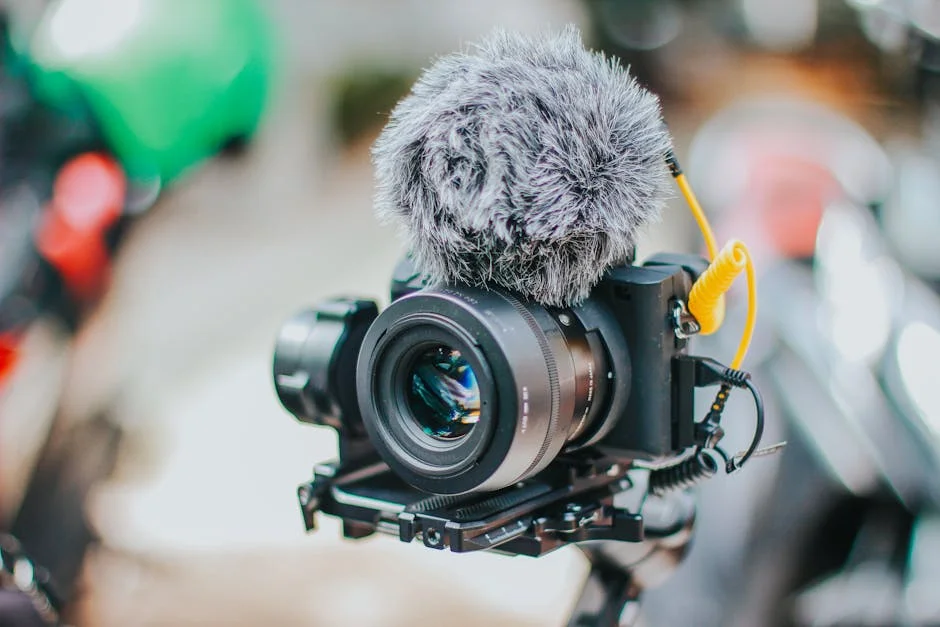
A dslr quality webcam setup has moved from a niche creator trick to a practical, everyday tool for remote work, online teaching, live streaming, telehealth, and product demos. The shift happened because audiences now expect clear, flattering video with natural color, smooth motion, and separation between the subject and the background. Built-in laptop cameras and many standalone webcams still struggle to deliver consistent results in mixed lighting, especially in rooms with windows, overhead LEDs, or warm lamps. A camera with a larger sensor and better optics can render skin tones more accurately, handle contrast without blowing out highlights, and keep the image clean when you need to raise ISO. That’s the core appeal: the same hardware that makes still photos look premium also makes real-time video feel more human and less “webcam flat.” When your face is your brand, your classroom, or your customer support channel, that improvement can translate into higher trust, longer watch time, and fewer “Can you repeat that?” moments caused by poor image quality and low perceived professionalism.
Table of Contents
- My Personal Experience
- Why a DSLR Quality Webcam Has Become the New Standard for Professional Video
- What “DSLR Quality” Means in Webcam Terms: Sensor, Optics, and Processing
- Choosing Between a Real DSLR, Mirrorless, or a Webcam That Mimics DSLR Quality
- Capture Methods: USB Webcam Mode vs Clean HDMI With a Capture Card
- Power, Heat, and Reliability: Keeping a Camera Running for Hours
- Lenses and Framing: Creating a Natural, Flattering Look Without Overdoing Blur
- Lighting for a DSLR Quality Webcam: Simple Changes That Beat Expensive Gear
- Expert Insight
- Audio and Sync: The Hidden Half of a Professional Webcam Experience
- Software Setup: Exposure, White Balance, Focus, and Color That Stay Consistent
- Platform Considerations: Zoom, Teams, Meet, OBS, and Bandwidth Reality
- Practical Buying Priorities: Where to Spend for the Biggest Visual Upgrade
- Common Mistakes That Make a DSLR Quality Webcam Look Worse Than a Regular Webcam
- Putting It All Together for a Stable, Natural DSLR Quality Webcam Workflow
- Watch the demonstration video
- Frequently Asked Questions
- Trusted External Sources
My Personal Experience
I switched to using my DSLR as a “webcam” for work calls after getting tired of the grainy look from my laptop camera, and the difference was immediate. With a cheap capture card and a dummy battery, I could keep it running through long meetings without worrying about it dying mid-call. The image looked noticeably sharper, and the background blur made my tiny home office feel less cluttered on screen. It wasn’t totally plug-and-play, though—I had to tweak autofocus because it kept hunting whenever I moved, and the camera would get a little warm after an hour or two. Once I dialed in the settings and saved them, it became my go-to setup whenever I wanted that clean “DSLR quality webcam” look without buying a dedicated streaming camera.
Why a DSLR Quality Webcam Has Become the New Standard for Professional Video
A dslr quality webcam setup has moved from a niche creator trick to a practical, everyday tool for remote work, online teaching, live streaming, telehealth, and product demos. The shift happened because audiences now expect clear, flattering video with natural color, smooth motion, and separation between the subject and the background. Built-in laptop cameras and many standalone webcams still struggle to deliver consistent results in mixed lighting, especially in rooms with windows, overhead LEDs, or warm lamps. A camera with a larger sensor and better optics can render skin tones more accurately, handle contrast without blowing out highlights, and keep the image clean when you need to raise ISO. That’s the core appeal: the same hardware that makes still photos look premium also makes real-time video feel more human and less “webcam flat.” When your face is your brand, your classroom, or your customer support channel, that improvement can translate into higher trust, longer watch time, and fewer “Can you repeat that?” moments caused by poor image quality and low perceived professionalism.
Another reason the dslr quality webcam approach keeps gaining momentum is flexibility. A dedicated camera body lets you choose lenses based on space and style, tune exposure and white balance to match the room, and use features like face detection, eye autofocus, and custom picture profiles. Instead of being stuck with a fixed wide lens and aggressive sharpening, you can dial in a more cinematic look that still reads as natural on a conference call. Even small details matter: a mild background blur can reduce visual clutter; a slightly longer focal length can make facial proportions look more flattering; and a controlled shutter speed can avoid the jittery, over-sharp motion typical of cheap webcams. The point isn’t to turn a meeting into a movie set, but to present yourself clearly and consistently. When your camera output looks stable across morning and evening sessions, across different rooms, and across different platforms, you spend less time troubleshooting and more time communicating.
What “DSLR Quality” Means in Webcam Terms: Sensor, Optics, and Processing
Calling something “DSLR quality” in the webcam world usually means the image characteristics resemble what you’d expect from an interchangeable-lens camera: cleaner low-light performance, more dynamic range, and more control over depth of field. A larger sensor is a major factor. Many webcams use tiny sensors that amplify noise in dim conditions and clip highlights when a window sits behind you. A camera with an APS-C, Micro Four Thirds, or full-frame sensor has more surface area to gather light, so it can maintain detail without turning your image into a smeared, over-processed mess. This matters for real-time video because streaming and conferencing platforms already compress your feed; if your source image is noisy or overly sharpened, compression artifacts become more obvious. Starting with a cleaner signal makes everything downstream look better, even when bandwidth fluctuates. If you’re looking for dslr quality webcam, this is your best choice.
Optics are the other half of the equation. Webcams often use a tiny fixed lens that’s designed to keep everything in focus, which can make your background distracting and your face appear less dimensional. A dslr quality webcam setup can use a prime lens that’s sharp where it needs to be while still rendering a gentle falloff behind you. You don’t need extreme blur; in many professional contexts, subtle separation looks more credible than a heavy portrait effect. Lens choice also affects perspective. A wider lens placed close to your face can exaggerate your nose and forehead, while a slightly longer focal length from farther away can look more natural. Finally, processing and color science matter. Many webcams apply heavy noise reduction and edge enhancement, which can create “waxy” skin and shimmering hair. Cameras designed for imaging typically offer more neutral processing, better color, and manual control over sharpening and noise reduction, letting you tailor the look to your environment rather than accepting a one-size-fits-all algorithm.
Choosing Between a Real DSLR, Mirrorless, or a Webcam That Mimics DSLR Quality
There are three common paths to a dslr quality webcam look: using an actual DSLR, using a mirrorless camera, or using a premium webcam engineered to imitate the aesthetic through better sensors and optics. Traditional DSLRs can work well if they offer clean HDMI output and can stay powered without overheating. However, many newer mirrorless cameras are more popular for webcam use because they provide reliable continuous autofocus, face/eye detection, and often have fewer heat issues at 1080p. Mirrorless bodies can also be lighter and easier to mount on a desk arm. If you already own a camera, the best option is usually the one you can run for hours with stable power and a clean video feed. The “best” camera is the one that doesn’t interrupt your work with shutdowns, battery swaps, or random focus hunting.
Premium webcams that claim DSLR-like results can be a reasonable compromise when you want simplicity. They may include a larger sensor than typical webcams, a brighter lens, and decent HDR handling. The tradeoff is control and upgradeability: you can’t swap lenses, and the internal processing may still be aggressive. For many office setups, a high-end webcam paired with good lighting can look excellent and require less gear. But if you want truly flexible framing, real optical character, and the ability to adapt to different rooms or styles, an interchangeable-lens camera is still the most direct route to a dslr quality webcam experience. Consider your workflow: if you are constantly on calls and need “always on,” a simpler device may reduce friction. If you create content, teach, or present regularly and want the image to be part of your brand, the camera route usually pays off in consistency and perceived quality.
Capture Methods: USB Webcam Mode vs Clean HDMI With a Capture Card
To turn a camera into a dslr quality webcam, you typically choose between built-in USB webcam mode and HDMI output captured by a capture device. USB webcam mode is convenient because it reduces hardware: you plug the camera into your computer and select it like a normal webcam. The downside is that USB modes sometimes cap resolution, limit frame rates, or apply extra compression. Some cameras also restrict settings in USB mode, leaving you with less control over shutter speed, aperture, or picture profiles. If your camera’s USB implementation is strong, this can be the simplest reliable path, especially for conferencing. It also tends to minimize cable clutter and can be more stable for users who don’t want to manage additional devices and drivers.
Clean HDMI with a capture card is the more flexible, often higher-quality route. The camera outputs a video signal over HDMI, and the capture device converts it to a webcam feed for your computer. This approach can support higher bitrates, better color, and more consistent frame rates. It also usually preserves full manual control, letting you lock exposure and white balance so your image doesn’t pulse when you move or when a screen changes brightness. The key is “clean” HDMI, meaning no on-screen icons, focus boxes, or menus burned into the output. A reliable capture card can make a dslr quality webcam feel as plug-and-play as a normal webcam once it’s set up, but it adds cost and complexity. Cable length, HDMI standards, and USB bandwidth can matter. If you rely on your camera daily, a capture card setup can be worth it for stability and the ability to keep your camera in video mode indefinitely without odd USB limitations.
Power, Heat, and Reliability: Keeping a Camera Running for Hours
One of the most overlooked aspects of a dslr quality webcam setup is power management. Cameras are designed for shooting sessions, not necessarily for being continuously active all day. If you run on battery, you’ll face interruptions and battery wear. The typical solution is an AC power adapter or “dummy battery” that connects to a wall outlet. This provides stable power and helps avoid random shutdowns. It also reduces the risk of your camera lowering performance to conserve battery. Stable power is especially important during webinars, sales calls, and live streams where interruptions are costly. With proper power, you can treat the camera as an appliance rather than a gadget you babysit.
Heat is the other reliability concern. Some cameras will overheat or impose recording limits, even if you’re not recording internally, because the sensor and processor are active. A well-chosen camera body, moderate resolution settings, and good airflow help. Avoid placing the camera in direct sunlight near a window, and don’t trap it behind a monitor where heat accumulates. If you need 4K output, understand that it can increase heat significantly; many people find that a sharp, well-lit 1080p feed looks more than professional enough and is easier to sustain. A dslr quality webcam doesn’t need extreme resolution to look premium; it needs stable exposure, good color, and clean detail. Reliability also includes cable strain relief and secure mounting. A loose micro-HDMI connector can ruin your day, so using cable clamps or right-angle adapters can protect ports and reduce accidental disconnects.
Lenses and Framing: Creating a Natural, Flattering Look Without Overdoing Blur
The lens you choose can make a bigger difference than many people expect when building a dslr quality webcam setup. In a typical desk environment, you want a field of view that frames your head and shoulders without distorting your face. If the camera is too close and too wide, your features can look stretched and your hands can appear comically large when you gesture. A slightly longer focal length, placed farther back, creates a more natural perspective. For APS-C cameras, something in the neighborhood of 23mm to 35mm can work depending on your distance; for full-frame, 35mm to 50mm is often comfortable. Micro Four Thirds users might look at 17mm to 25mm. These are not strict rules; room size and desk depth matter. The goal is to look like yourself, not like a wide-angle action cam.
Aperture choice affects depth of field and how forgiving focus is. Many people chase the maximum blur, but for calls and teaching, too much blur can be distracting and can cause your face to drift out of focus when you lean forward. A more moderate aperture often looks more professional and reduces autofocus stress. If your background is messy, consider tidying it or moving your desk rather than relying solely on blur. The dslr quality webcam look is as much about lighting, color, and composition as it is about bokeh. Also consider lens characteristics like focus breathing and autofocus noise. Some lenses change field of view slightly when focusing, which can look odd on video. Others have noisy motors that can be picked up by a nearby microphone. Choosing a lens known for smooth, quiet focusing can improve the overall polish of your setup.
Lighting for a DSLR Quality Webcam: Simple Changes That Beat Expensive Gear
Lighting is where a dslr quality webcam can either shine or fall apart. Even the best camera will look mediocre in harsh overhead lighting or in a room dominated by a bright window behind you. A practical approach is to place a soft key light in front of you, slightly off to one side, at about eye level. This creates gentle shadowing that adds dimension without making you look dramatic. If you wear glasses, raising the light a bit and angling it down can reduce reflections. A second, weaker fill light or a bounce from a white wall can soften shadows on the opposite side of your face. You don’t need a studio; you need control. The more you can control the direction and softness of light, the more consistent your image will be across different times of day.
Expert Insight
Use a clean HDMI output from your DSLR into a capture card, then set the camera to manual exposure: lock shutter speed (1/50 or 1/60), keep ISO as low as possible, and choose a wide aperture only if you can maintain focus. Disable auto white balance and set a fixed Kelvin value to prevent color shifts during calls. If you’re looking for dslr quality webcam, this is your best choice.
Prioritize lighting and lens choice for a true DSLR-quality webcam look: place a soft key light at a 45° angle, add a subtle fill or bounce to reduce harsh shadows, and use a mid-range focal length (around 35–50mm full-frame equivalent) to avoid distortion. Frame at eye level, enable face/eye autofocus if reliable, and keep the background a few feet behind you for smoother separation. If you’re looking for dslr quality webcam, this is your best choice.
Color temperature is equally important. Mixed lighting can confuse auto white balance and make your skin tone shift between frames. Choose one color temperature for your room and stick with it: either daylight-balanced lights with curtains to manage window light, or warmer lights and minimal daylight. Then lock white balance in the camera so it doesn’t drift when your monitor changes content. A dslr quality webcam feed benefits from stability more than from extreme brightness. If you use a ring light, be careful: it can create flat lighting and circular catchlights that some viewers find distracting. Softbox-style lights or diffused LED panels often look more natural. Background lighting can help too. A small lamp behind you or a subtle LED accent can separate you from the background and make the scene feel intentional without turning it into a flashy set.
Audio and Sync: The Hidden Half of a Professional Webcam Experience
People often focus on the camera and forget that a dslr quality webcam experience is judged as a whole. Audio quality strongly influences how “professional” your video feels, sometimes more than sharpness does. A crisp image paired with echoey room sound can still feel amateur. Consider using a dedicated USB microphone, an XLR mic with an audio interface, or a quality headset if you need maximum simplicity. Mic placement matters: closer is usually better, as it reduces room reflections and background noise. If you’re using a desk mic, a boom arm can keep it positioned consistently and out of frame. Acoustic treatment can be as simple as adding a rug, curtains, or bookshelves to reduce slap echo.
| Option | DSLR-Quality Look | Setup & Reliability | Typical Cost |
|---|---|---|---|
| Mirrorless/DSLR + HDMI capture card | Best: true shallow depth of field, strong low-light, interchangeable lenses | Most complex: clean HDMI, dummy battery, heat/auto-off settings; very stable once tuned | High (camera + lens + capture) |
| Mirrorless/DSLR via USB webcam utility | Very good: close to DSLR look, but often softer/compressed vs HDMI | Easiest: one cable; may have limited resolution/FPS and occasional driver quirks | Medium (camera + lens) |
| Premium webcam (large sensor / 4K) | Good: sharper and cleaner than basic webcams, but less “cinematic” blur than DSLR | Simplest: plug-and-play; consistent autofocus/exposure for meetings/streaming | Low–Medium |
Sync is another detail that can undermine an otherwise great dslr quality webcam setup. Capture cards and video processing can introduce latency, making your lips slightly out of sync with your audio. Some streaming software allows you to add an audio delay to match the video. Conferencing platforms may not give you that control, so choosing a low-latency capture device and avoiding unnecessary processing can help. If you route audio through the camera via an external mic input, you may reduce sync issues because the audio travels with the video signal. However, camera preamps vary; many creators prefer recording audio separately through an interface. The best approach depends on your platform and tolerance for setup complexity. The key is to test your full chain—camera, capture, lighting, mic, and software—under real conditions before an important event, and then avoid changing settings right before you go live.
Software Setup: Exposure, White Balance, Focus, and Color That Stay Consistent
Consistency is the hallmark of a dslr quality webcam feed. Auto settings can be convenient, but they often create visible fluctuations: exposure brightens when you hold up a document, white balance shifts when a webpage changes, and autofocus hunts when you gesture. For professional results, lock the fundamentals. Set your frame rate (often 30 fps for calls, 24 or 30 for streams), then set shutter speed to match it in a natural way (commonly double the frame rate, such as 1/60 for 30 fps). Choose an aperture that keeps your face in focus even if you lean slightly. Then set ISO as low as you can while maintaining adequate brightness with your lighting. Lock white balance to a fixed Kelvin value or a custom preset. Once these are stable, your image stops “breathing” and starts looking like a deliberate production.
Focus can be handled in a few ways. Continuous autofocus with face/eye detection is convenient and often reliable, but it can still hunt if lighting is low or if you turn sideways. Manual focus can be rock-solid if your distance to the camera doesn’t change much. Many people split the difference: use autofocus to set focus, then switch to manual to lock it. Color settings also matter. Some cameras offer picture profiles that are designed for post-production, but those can look flat and washed out in live calls. A more neutral standard profile with slightly reduced sharpening and modest contrast is often best for a dslr quality webcam. If your software allows basic color adjustments, keep them subtle; aggressive saturation and clarity can create harsh skin texture and amplify compression artifacts. The goal is a clean, natural image that survives platform compression and looks good on a variety of screens.
Platform Considerations: Zoom, Teams, Meet, OBS, and Bandwidth Reality
Your dslr quality webcam can only look as good as the platform allows. Many conferencing tools compress video heavily and may cap resolution depending on account level, meeting settings, and network conditions. That doesn’t mean the effort is wasted. A higher-quality source still helps because compression works better on clean, well-lit images with less noise and fewer fine, chaotic details. If your room is dark and grainy, the codec struggles and the result looks worse. If your image is bright, stable, and properly exposed, the platform can preserve facial detail and color more effectively. It’s also worth checking whether your platform is using the correct camera input and not defaulting to a lower-quality virtual camera layer.
For streaming and recording, software like OBS can unlock the full potential of a dslr quality webcam by letting you choose bitrate, encoder settings, and color format. You can also add subtle noise reduction, color correction, and background control without relying on platform filters that may degrade the image. However, more processing can add latency and strain your CPU or GPU. Bandwidth matters too. If your upload speed is limited, aim for a stable stream rather than chasing maximum resolution. A steady 1080p feed with good lighting often looks better than a stuttering 4K attempt. Also consider that some platforms apply additional smoothing or “appearance” filters by default; disable them if they conflict with your camera’s natural rendering. The best-looking setup is the one that stays consistent across calls, streams, and recordings without constant tinkering.
Practical Buying Priorities: Where to Spend for the Biggest Visual Upgrade
When building a dslr quality webcam setup, it’s easy to overspend in the wrong places. The biggest visual upgrades typically come from: lighting, lens choice, and stable camera settings. If your budget is limited, start with a good key light and a simple way to control your room’s ambient light. Then focus on a camera that can output clean video reliably and run on continuous power. After that, choose a lens that suits your space. A moderately priced prime lens often improves the look more than jumping to a higher-end camera body while using a mediocre kit lens. Mounting and positioning also matter: getting the camera at eye level and slightly above can be more flattering than any spec upgrade.
Don’t ignore the capture device and cables if you go the HDMI route. A flaky capture card can cause random disconnects, dropped frames, or audio sync drift, all of which undermine the dslr quality webcam goal. Use a reputable capture device, quality cables, and consider right-angle adapters to reduce stress on micro-HDMI ports. If you want a clean desk, invest in cable management and a sturdy arm or tripod that won’t sag over time. The cumulative effect of small practical choices is what makes the setup feel professional day after day. Also consider total cost of ownership: dummy battery, power adapter, lens, mount, and lighting can add up. Planning the whole chain prevents surprises and helps you allocate budget where it creates visible results rather than chasing specs that won’t survive conferencing compression.
Common Mistakes That Make a DSLR Quality Webcam Look Worse Than a Regular Webcam
A dslr quality webcam can look surprisingly bad if a few common mistakes slip in. One is placing the camera too low, which creates unflattering angles and emphasizes the ceiling or nostrils. Another is using a very wide lens close to your face, causing distortion that feels “action cam” rather than professional. Overusing background blur can also backfire; if your eyes drift out of focus when you move, viewers notice immediately. Another frequent issue is leaving exposure and white balance on auto. The resulting brightness pulsing and color shifting reads as unstable and can make even an expensive camera look cheap. Similarly, mixing daylight from a window with warm indoor lights can create inconsistent skin tones that are hard to fix in software.
Technical settings can cause problems too. If your shutter speed is too fast, motion looks choppy and harsh, which can make the feed feel less natural even if it’s sharp. If your ISO is too high because the room is dim, noise increases and compression artifacts become more visible. Some people also crank in-camera sharpening or clarity, which makes pores and fine hair shimmer under compression. Audio is another pitfall: viewers forgive imperfect video faster than they forgive echo, hum, or inconsistent volume. Finally, cluttered backgrounds and distracting movement can reduce the perceived quality of a dslr quality webcam feed. A clean composition with controlled light and stable settings almost always looks more “high-end” than a technically superior camera pointed at a messy room with bad lighting.
Putting It All Together for a Stable, Natural DSLR Quality Webcam Workflow
A dependable dslr quality webcam workflow is less about constant upgrades and more about creating a repeatable routine. Start by fixing the physical layout: camera at eye level, a flattering distance, and a lens that suits your room. Set up your key light so your face is evenly lit, then add a small background light if you want separation. Lock camera settings—frame rate, shutter speed, aperture, ISO, and white balance—so your image doesn’t fluctuate. Choose a capture method that matches your tolerance for complexity: USB webcam mode for simplicity, or clean HDMI with a capture card for maximum control. Add continuous power so you can run for long sessions without interruptions. Then test on the actual platforms you use, because each one compresses differently and may apply its own processing.
Once the fundamentals are stable, keep the look natural. Viewers respond well to clarity, accurate color, and steady motion; they don’t need extreme blur or overly stylized color grading for everyday communication. Save presets in your camera if possible, and document your settings so you can recover quickly after a firmware update or accidental reset. If you travel or change rooms, bring the same principles with you: control the light, lock white balance, and keep framing consistent. When you treat your setup like a system rather than a collection of gadgets, the result feels effortless to your audience. The most valuable outcome is that you stop thinking about the gear during important conversations, because your dslr quality webcam simply works and looks polished every time.
Watch the demonstration video
Discover how to turn a DSLR into a high-quality webcam for sharper video, better low-light performance, and professional-looking background blur. This video explains the gear and software you’ll need, how to connect and configure your camera, and tips for clean audio, lighting, and settings to get the best results for streaming or calls. If you’re looking for dslr quality webcam, this is your best choice.
Summary
In summary, “dslr quality webcam” is a crucial topic that deserves thoughtful consideration. We hope this article has provided you with a comprehensive understanding to help you make better decisions.
Frequently Asked Questions
Can I use a DSLR as a high-quality webcam?
Yes—many DSLRs can send a clean video feed to your computer using an HDMI capture card or the manufacturer’s webcam software, giving you a **dslr quality webcam** look with sharper detail, better low-light performance, and more natural background blur than most standard webcams.
What do I need to connect a DSLR for webcam use?
In most cases, you’ll connect your camera using a micro/mini HDMI cable and a USB capture device to get a **dslr quality webcam** setup. Alternatively, some cameras can run in a direct USB webcam mode using the manufacturer’s official software—no capture card required.
How do I avoid the on-screen overlays (clean HDMI) on my DSLR feed?
If your camera supports it, turn on “clean HDMI” in the menu (or switch off the on-screen info display) so your video feed stays free of distracting overlays—some models need specific settings or even a firmware update to fully clear the screen for a **dslr quality webcam** setup.
Will my DSLR overheat or shut off during long calls/streams?
Yes—it can. To keep your camera running smoothly as a **dslr quality webcam**, try lowering the resolution or frame rate, making sure it has plenty of airflow, turning off extra features you don’t need, and using a dummy battery or AC adapter to cut down on heat while avoiding battery drain.
What settings give the best DSLR webcam quality?
If your camera supports it, record in 1080p and choose a frame rate that fits your platform (30 or 60 fps). Lock in a consistent white balance, switch to manual exposure to prevent distracting brightness shifts, and add soft, even lighting to smooth out shadows for a clearer, more professional look—especially if you’re aiming for a **dslr quality webcam** setup.
Is autofocus good enough for DSLR webcam use?
In many cases, yes—today’s face and eye autofocus can work really well, but results still depend on the specific camera and lens you’re using. For the most consistent **dslr quality webcam** setup, stick with continuous AF paired with face detection, or set manual focus at a fixed distance if you want maximum reliability.
📢 Looking for more info about dslr quality webcam? Follow Our Site for updates and tips!

Trusted External Sources
- What is the best high quality camera to use as a webcam? – Reddit
Feb 18, 2026 … I’m not very knowledgeable on this, but I know some of my favorite streamers use DSLR cameras, which are a different type of camera technology … If you’re looking for dslr quality webcam, this is your best choice.
- Opal C1 — The first professional camera
Meet the Opal C1, a professional-grade webcam that delivers **dslr quality webcam** performance with help from Composer, its polished companion app. Built around a 4K Sony sensor, it’s designed to capture crisp, true-to-life video for calls, streaming, and content creation.
- Video call quality: webcam vs iPhone vs DSLR – Jeff Carlson
On Jun 4, 2026, I published two new articles for @reincubate comparing webcams, iPhones, and DSLR/mirrorless cameras—and sharing practical tips to upgrade your video calls, whether you’re aiming for a quick setup or a **dslr quality webcam** look.
- Mike’s Fancy DSLR Webcam Setup
Mar 8, 2026 … And if you already have a nice camera, you have most of what you need to get your video looking awesome by using your camera as a high-quality … If you’re looking for dslr quality webcam, this is your best choice.
- “Improve Your Webcam Quality,” an article by Dan Mall
Nov 25, 2026 — Here’s a side-by-side look at how my video turns out using three different setups: the built-in MacBook Pro camera, the LG UltraFine webcam, and a **dslr quality webcam** for that crisp, professional finish.